

Portal Settings
📖 Introduction
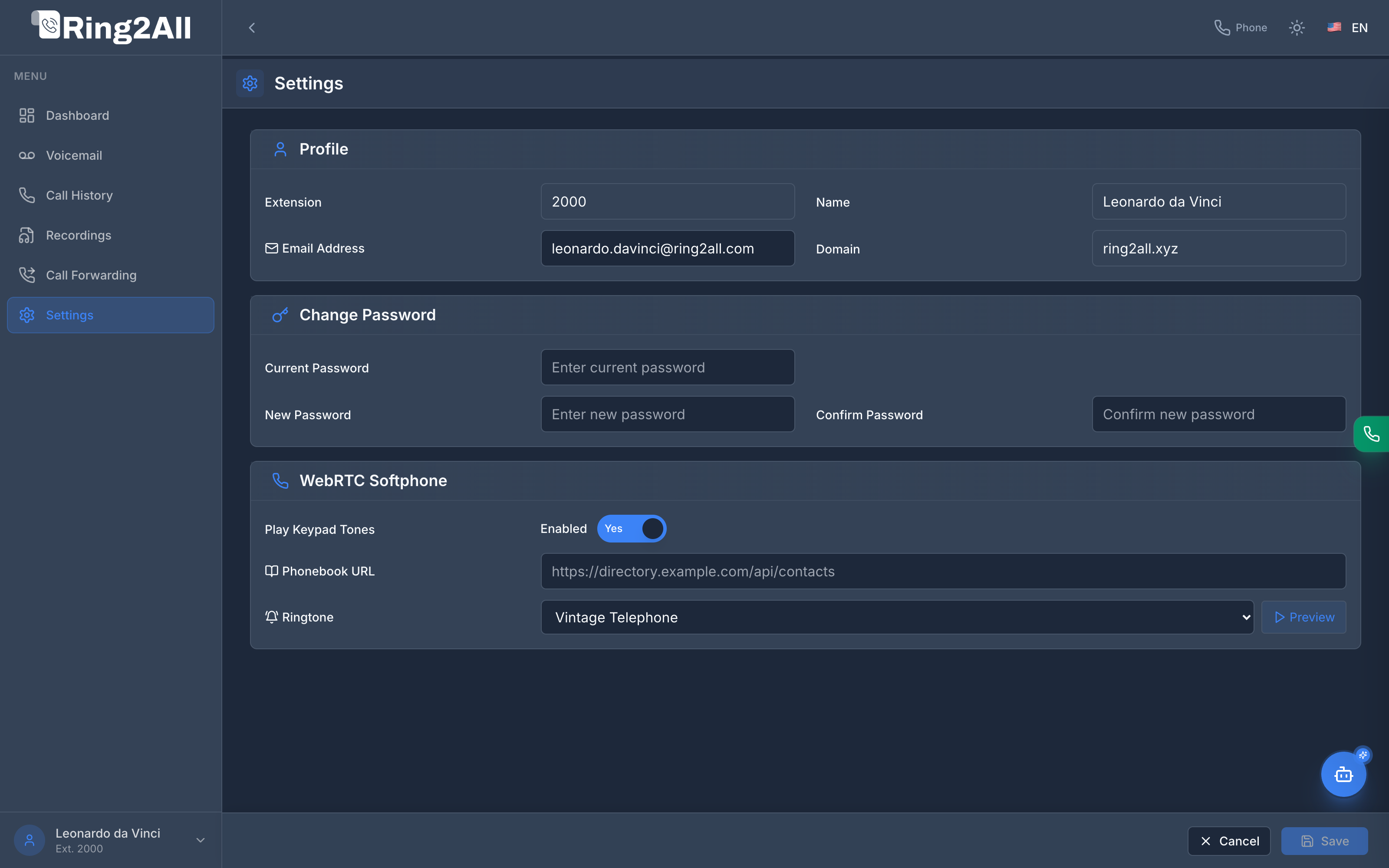
Section titled “📖 Introduction”The Settings module allows subscribers to personalize their extension profile, update their authentication passwords, and fine-tune their WebRTC browser softphone preferences, including keypad feedback, ringtone sound selection with live preview, and external phonebook directory synchronization.
👤 Profile Configuration
Section titled “👤 Profile Configuration”The top card displays the subscriber’s identity within the PBX domain:
| Field | Description | Editable |
|---|---|---|
| Extension | Assigned numeric extension (e.g., 2000). |
Read-only |
| Name | Caller ID name (e.g., Leonardo da Vinci). |
Yes |
| Email Address | Primary notification and password recovery address. | Yes |
| Domain | PBX tenant domain (e.g., ring2all.xyz). |
Read-only |
🔑 Change Password
Section titled “🔑 Change Password”Subscribers can update their personal portal access credentials at any time:
- Current Password: Verification of existing password or voicemail PIN.
- New Password: Desired alphanumeric password adhering to system security policies.
- Confirm Password: Confirmation match field to avoid typing errors.
📞 WebRTC Softphone Preferences
Section titled “📞 WebRTC Softphone Preferences”Subscribers can tailor the audio and directory behavior of their browser-based softphone:
| Setting | Control Type | Description |
|---|---|---|
| Play Keypad Tones | Toggle (Yes / No) |
When enabled, generates audible dual-tone multi-frequency (DTMF) feedback when clicking the softphone dial pad. |
| Phonebook URL | Text input | Custom URL to an external HTTP JSON or XML contact directory (e.g., https://directory.example.com/api/contacts). Enables live search in the softphone directory. |
| Ringtone | Dropdown Selector | Choose between distinct audio profiles: Vintage Telephone, Digital Pulse, Modern Chime, Subtle Bell, and Office Pulse. |
| Preview Ringtone | Button (▶ Preview) |
Instantly plays a live audio sample of the selected ringtone through the current output device. |
💡 Configuration Tips
Section titled “💡 Configuration Tips”[!TIP] Test Audio Before Calls: Use the Preview button next to Ringtone to ensure your headphones or desktop speakers are properly unmuted before receiving incoming client calls.