

WireGuard Client Module Documentation
Table of Contents
Section titled “Table of Contents”- Navigation & Access
- Screenshots & Visual Interface
- 🎯 User Roles & Key Capabilities
- Module Overview (Technical)
- Module Overview (Commercial/Business)
- Module Overview (End User/Administrator)
- Configuration Sections
- Model Context Protocol (MCP) AI Integration
- Common Scenarios & Examples
- Limitations & Important Notes
- Troubleshooting Tips
- Glossary
Navigation & Access
Section titled “Navigation & Access”To access the WireGuard VPN module:
- Log in to the Ring2All Web Portal (
https://<domain-or-ip>/login). - In the left navigation sidebar, expand Administration.
- Under Network, click WireGuard VPN (
/admin/network/wireguard). - Upload or manage WireGuard configuration files (
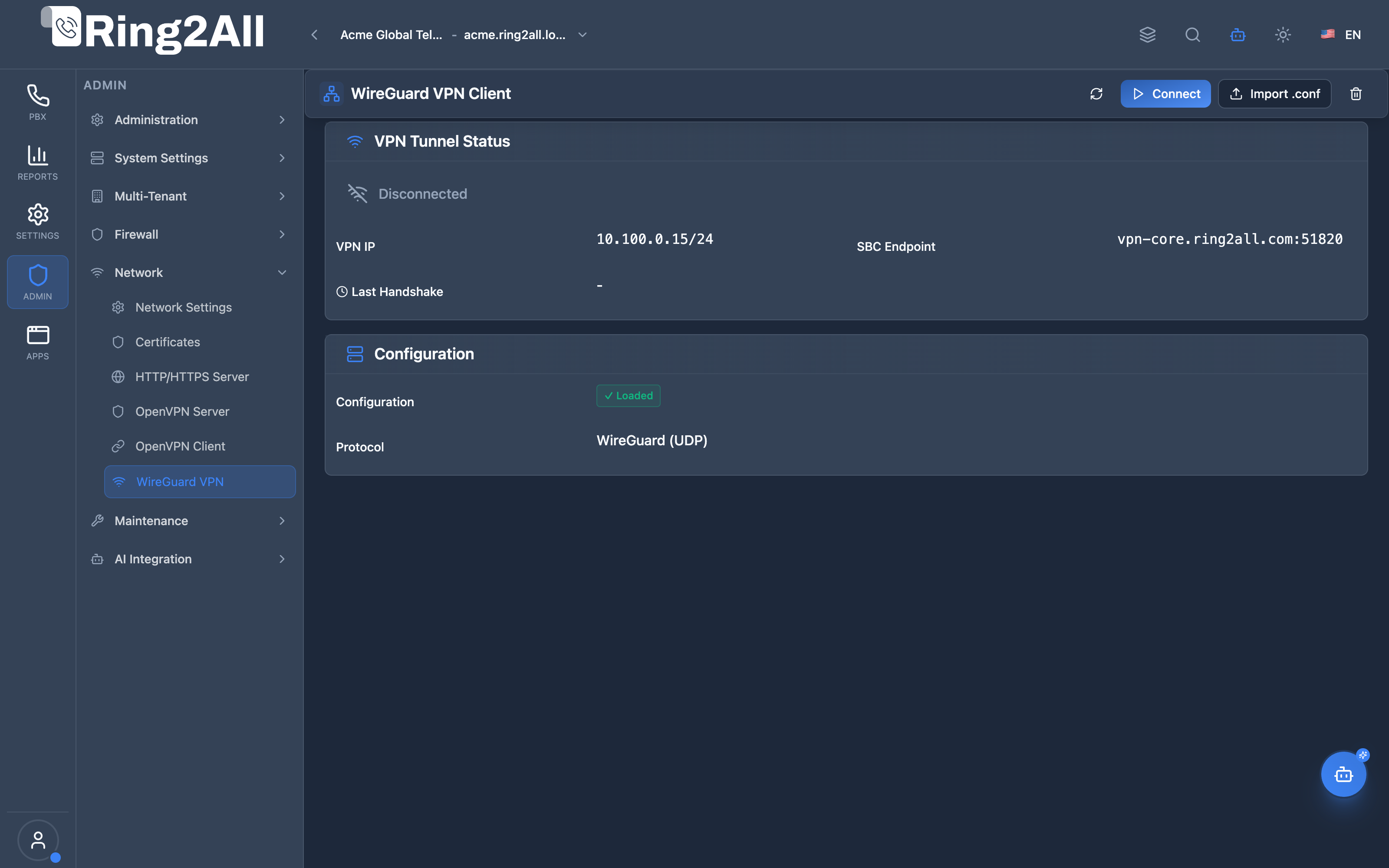
wg0.conf), monitor interface state, verify internal tunnel addressing (10.100.0.15/24), and validate remote peer endpoints (vpn-core.ring2all.com:51820).
Screenshots & Visual Interface
Section titled “Screenshots & Visual Interface”High-Performance WireGuard Cryptographic Tunnel
Section titled “High-Performance WireGuard Cryptographic Tunnel”Interface dashboard showing kernel-level WireGuard status, local virtual tunnel IP address, peer endpoint gateway, allowed IP subnets, and active configuration loader.
🎯 User Roles & Key Capabilities
Section titled “🎯 User Roles & Key Capabilities”| Role | Access Level | Responsibilities & Capabilities |
|---|---|---|
| PBX Super Administrator | Full Access (RW) |
Upload wg0.conf configuration files, control kernel tunnel services (wg-quick@wg0), and manage private encryption keys. |
| Carrier Interconnect Engineer | Full Operations (RW) |
Configure peering endpoints, restrict AllowedIPs subnets for SIP provider interconnects, and verify kernel UDP transmission rates. |
| DevOps & Infrastructure Lead | Monitoring (RO) |
Monitor cryptographic handshake freshness (< 180 seconds), verify rx/tx byte counters, and detect MTU fragmentation. |
| AI Platform Copilot / MCP Agent | Diagnostic & Telemetry (RO) |
Execute get_wireguard_client_status to evaluate tunnel health, verify last handshake timestamp, and inspect peer endpoints. |
1. Module Overview (Technical)
Section titled “1. Module Overview (Technical)”What Is WireGuard Client?
Section titled “What Is WireGuard Client?”WireGuard Client is a modern site-to-site VPN module that connects the server to another network via a secure WireGuard tunnel. WireGuard is known for its high performance, state-of-the-art cryptography, and simplicity compared to older VPN protocols like OpenVPN or IPsec.
Architecture
Section titled “Architecture”┌─────────────────────────────────────────────────────────────────┐│ WireGuard Client Architecture │├─────────────────────────────────────────────────────────────────┤│ ││ Local PBX Server / SBC ││ ┌──────────────────────────────────────────────────────────┐ ││ │ │ ││ │ WireGuard Interface (wg0) │ ││ │ ┌────────────────────────────────────────────────────┐ │ ││ │ │ │ │ ││ │ │ .conf Configuration File │ │ ││ │ │ ├─ Private Key: [Hidden] │ │ ││ │ │ ├─ Local IP: 10.10.10.5/24 │ │ ││ │ │ ├─ Peer Endpoint: vpn.datacenter.com:51820 │ │ ││ │ │ ├─ Peer Public Key: XyZ123... │ │ ││ │ │ └─ AllowedIPs: 10.10.10.0/24 │ │ ││ │ │ │ │ ││ │ └────────────────────────────────────────────────────┘ │ ││ │ │ ││ │ Status: ● Connected │ ││ │ Latest Handshake: 1 minute, 23 seconds ago │ ││ │ │ ││ └──────────────────────────────────────────────────────────┘ ││ │ ││ │ Encrypted UDP Tunnel ││ │ ││ ▼ ││ ┌──────────────────────────────────────────────────────────┐ ││ │ Remote Network / Data Center │ ││ │ │ ││ │ ┌─────────────┐ ┌─────────────┐ ┌─────────────┐ │ ││ │ │ WireGuard │ │ SIP Trunk │ │ Database │ │ ││ │ │ 10.10.10.1 │ │ 10.0.0.10 │ │ 10.0.0.20 │ │ ││ │ └─────────────┘ └─────────────┘ └─────────────┘ │ ││ │ │ ││ └──────────────────────────────────────────────────────────┘ ││ │└─────────────────────────────────────────────────────────────────┘2. Module Overview (Commercial/Business)
Section titled “2. Module Overview (Commercial/Business)”Business Value
Section titled “Business Value”WireGuard Client provides blazing fast secure site connectivity:
| OpenVPN | WireGuard |
|---|---|
| High overhead | Low overhead |
| Complex code base | Minimal code base |
| Slower roaming | Fast IP roaming |
| Slower throughput | Near wire-speed |
Use Cases
Section titled “Use Cases”- Carrier Interconnect
- Connect to a SIP trunk provider securely over the public internet.
- Multi-Site PBX
- Link multiple Ring2All instances together securely.
- Database Replication
- Secure the traffic between the application server and a remote PostgreSQL cluster.
3. Module Overview (End User/Administrator)
Section titled “3. Module Overview (End User/Administrator)”What Can You Do?
Section titled “What Can You Do?”- Upload a standard WireGuard
.conffile. - Bring the tunnel up (Connect) or down (Disconnect).
- Monitor connection status, data transfer, and handshake times.
- Verify peering connectivity.
- Delete the configuration securely.
Quick Tips
Section titled “Quick Tips”[!TIP] Check Handshake: The “Latest Handshake” is the absolute best indicator of a working WireGuard tunnel. If the handshake is missing or older than 5 minutes, traffic is not flowing.
[!WARNING] AllowedIPs Caution: Be very careful with
AllowedIPs = 0.0.0.0/0. This will route ALL server traffic through the VPN, potentially cutting off your administrative SSH/Web access!
4. Configuration Sections
Section titled “4. Configuration Sections”Configuration Management
Section titled “Configuration Management”| Field | Description |
|---|---|
| Connection Name | An internal identifier for the VPN connection |
| Upload | Drag and drop a .conf file generated by your WireGuard Server |
| Connect / Disconnect | Controls the wg-quick@wg0 system service |
| Delete | Removes the configuration and shuts down the tunnel |
Status Section
Section titled “Status Section”| Field | Description |
|---|---|
| Status | Connected/Disconnected |
| Interface | Usually wg0 |
| Public Key | The cryptographic identity of the peer |
| Endpoint | The remote IP address and UDP port of the VPN server |
| Latest Handshake | Time elapsed since the last successful cryptographic exchange |
| Transfer | Amount of data received and sent |
Model Context Protocol (MCP) AI Integration
Section titled “Model Context Protocol (MCP) AI Integration”The WireGuard Client module connects to the Model Context Protocol (MCP), granting the Platform Copilot and autonomous operations agents real-time access to kernel-level cryptographic tunnel diagnostics.
Available MCP Tools
Section titled “Available MCP Tools”| Tool Name | Scope | Description |
|---|---|---|
get_wireguard_client_status |
Kernel WireGuard Telemetry (RO) |
Queries the WireGuard client tunnel status (wg0 interface), peer endpoint, last handshake timestamp, and transfer counters (rx/tx bytes). |
Tool Schemas & Payloads
Section titled “Tool Schemas & Payloads”get_wireguard_client_status
Section titled “get_wireguard_client_status”{ "name": "get_wireguard_client_status", "description": "Queries the WireGuard client tunnel status (wg0 interface), peer endpoint, last handshake timestamp, and transfer counters (rx/tx bytes).", "parameters": { "type": "object", "properties": {} }}Realistic Execution Response:
{ "success": true, "data": { "wireguard": { "interface": "wg0", "hasConfig": true, "connected": true, "vpnIp": "10.100.0.15/24", "serverEndpoint": "vpn-core.ring2all.com:51820", "lastHandshake": "2026-09-08T10:59:12Z", "bytesReceived": 48392014, "bytesSent": 39102940, "health": "healthy" } }}Bilingual Natural Language Prompt Examples
Section titled “Bilingual Natural Language Prompt Examples”English Prompts
Section titled “English Prompts”- “Copilot, verify if the WireGuard client tunnel is connected and check the last handshake time.”
- “Show the current transfer counters (bytes sent and received) on interface wg0.”
- “Is the remote WireGuard server endpoint reachable and what VPN IP is assigned?”
Spanish Prompts
Section titled “Spanish Prompts”- “Copilot, verifica si el túnel WireGuard está activo y cuándo ocurrió el último apretón de manos (handshake).”
- “Muestra el total de bytes transmitidos y recibidos a través de la interfaz wg0.”
- “¿Cuál es la IP asignada dentro del túnel WireGuard y cuál es el endpoint del servidor?”
Enterprise Safeguards & Execution Boundaries
Section titled “Enterprise Safeguards & Execution Boundaries”- Kernel Status Isolation:
get_wireguard_client_statusexecutessudo wg show wg0 dumpstrictly in read-only mode to capture peer telemetry without altering routing or crypto tables. - Private Key Masking: Client private keys are kept secure inside
/etc/wireguard/wg0.confwith0600permissions and never returned in MCP tool outputs. - Health Threshold Detection: Tunnels with a handshake older than 180 seconds or no handshake at all are flagged with
health: connecting/idlerather than healthy.
5. Common Scenarios & Examples
Section titled “5. Common Scenarios & Examples”Scenario 1: Uploading a Provider Config
Section titled “Scenario 1: Uploading a Provider Config”- Obtain a
.conffile from your SIP Trunk provider. - Ensure the
AllowedIPsrestricts routing to just the provider’s IP subnets (e.g.,10.20.30.0/24). - Click Upload Configuration and drop the file.
- Click Connect.
- Wait a few seconds and click Refresh Status. Ensure the “Latest Handshake” shows a recent time.
Scenario 2: Troubleshooting a Broken Link
Section titled “Scenario 2: Troubleshooting a Broken Link”- If the Status is “Connected” but you cannot reach the remote server.
- Check the “Latest Handshake”. If it says
No handshake, the server cannot reach the remote endpoint. - Verify that your server’s outbound UDP traffic to the Endpoint port is not blocked by another firewall.
- Verify that the endpoint’s public IP is correct.
6. Limitations & Important Notes
Section titled “6. Limitations & Important Notes”Technical Notes
Section titled “Technical Notes”[!NOTE] Stateless Design: WireGuard is technically stateless. The interface being “Up” (Connected) does not guarantee the peer is reachable. Always check the Handshake.
[!CAUTION] Conflicting Routes: If the
AllowedIPsin your WireGuard config conflicts with your local LAN routes, you may lose connectivity to your local gateway.
7. Troubleshooting Tips
Section titled “7. Troubleshooting Tips”Command Line Verification (Server)
Section titled “Command Line Verification (Server)”# Check WireGuard statussudo wg show
# View the applied configurationsudo cat /etc/wireguard/wg0.conf
# Check routing tableip route show
# Ping across the tunnel (assuming remote IP is 10.10.10.1)ping 10.10.10.18. Glossary
Section titled “8. Glossary”| Term | Definition |
|---|---|
| Handshake | Cryptographic key exchange proving both sides are authenticated and online |
| AllowedIPs | The IP subnets that WireGuard will route through the tunnel and accept from the peer |
| Endpoint | The public IP and Port of the remote WireGuard server |
| wg-quick | The helper utility that sets up WireGuard interfaces and routing tables |
Documentation last updated: September 2026