

PBX CLI Module Documentation
Table of Contents
Section titled “Table of Contents”- Navigation & Access
- Screenshots & Visual Interface
- Module Overview (Technical)
- Module Overview (Commercial / Business)
- Module Overview (End User / Administrator)
- Quick Command Button Slots & Configuration
- Telephony Server CLI Command Reference
- Common Scenarios & Examples
- Limitations & Security Safeguards
- Model Context Protocol (MCP) AI Integration
- Troubleshooting Tips
- Database Schema
- Glossary
Navigation & Access
Section titled “Navigation & Access”To access the PBX CLI terminal and configuration:
- Log in to the Ring2All Web Portal (
https://<domain-or-ip>/login). - In the left navigation sidebar, expand PBX Engine.
- Under PBX Tools, click PBX CLI (
/pbx/tools/cli). - To configure or rearrange the quick-command button slots, click Configure Buttons or navigate to
/pbx/tools/cli-button-configs. - To edit a specific button shortcut, click the edit icon in the button configs table (
/pbx/tools/cli-button-configs/:id).
Screenshots & Visual Interface
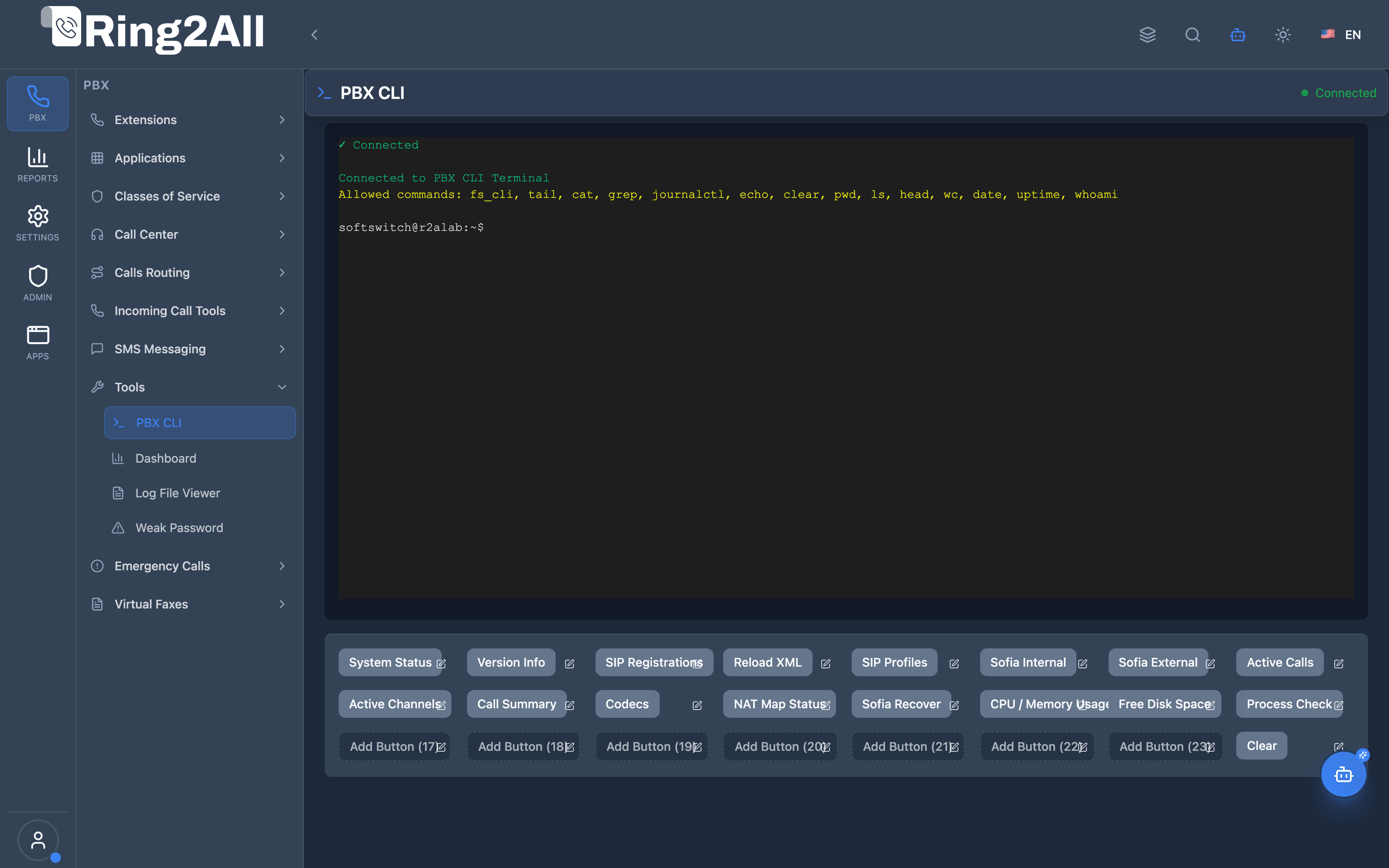
Section titled “Screenshots & Visual Interface”PBX CLI Interactive Terminal
Section titled “PBX CLI Interactive Terminal”Full browser-based console terminal powered by xterm.js featuring live interactive Telephony Server commands, quick-action command slots, clear output controls, and WebSocket streaming.
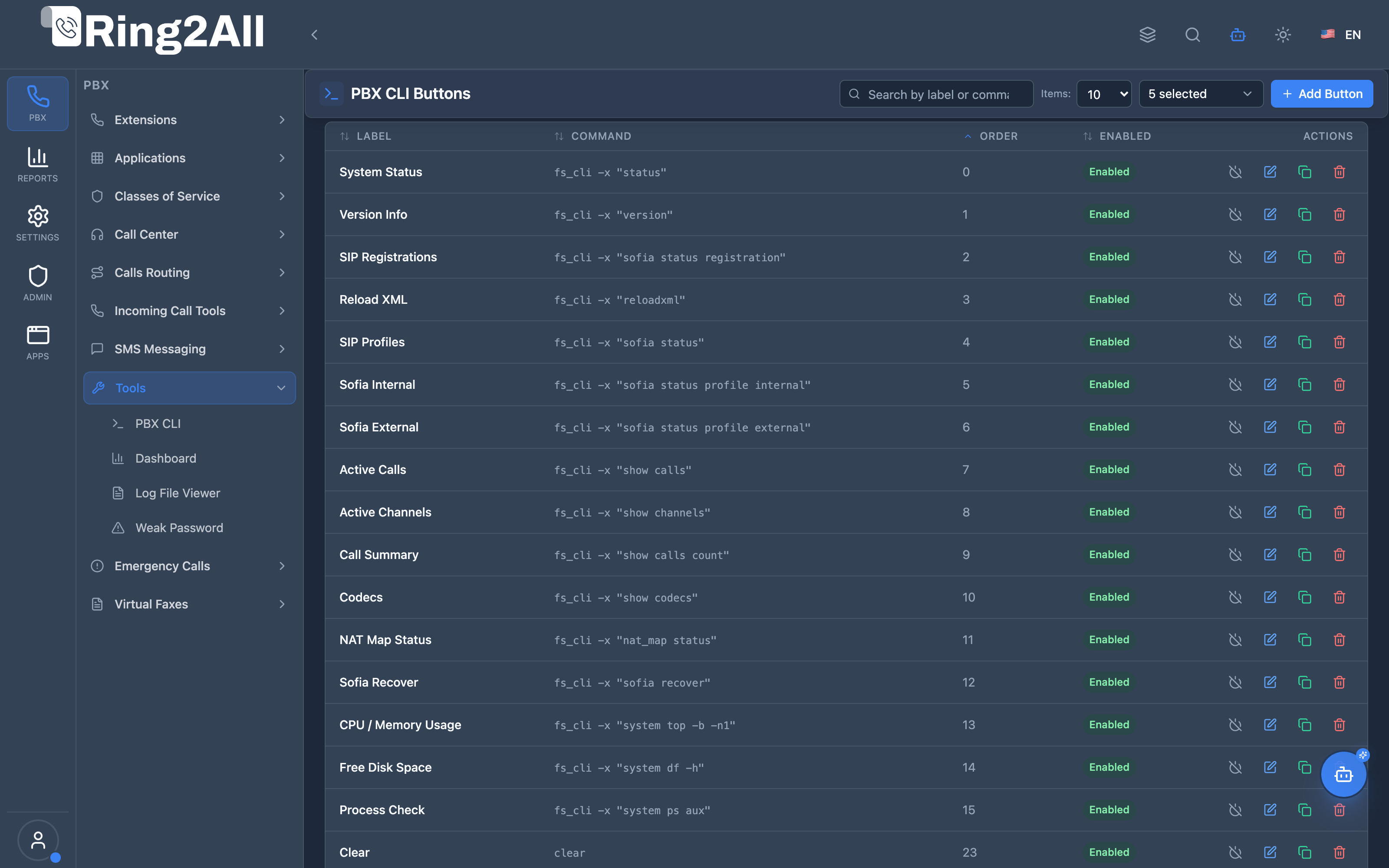
Button Configurations Overview
Section titled “Button Configurations Overview”Grid list displaying all tenant-configured command shortcut buttons, assigned order index, executed CLI command string, and status.
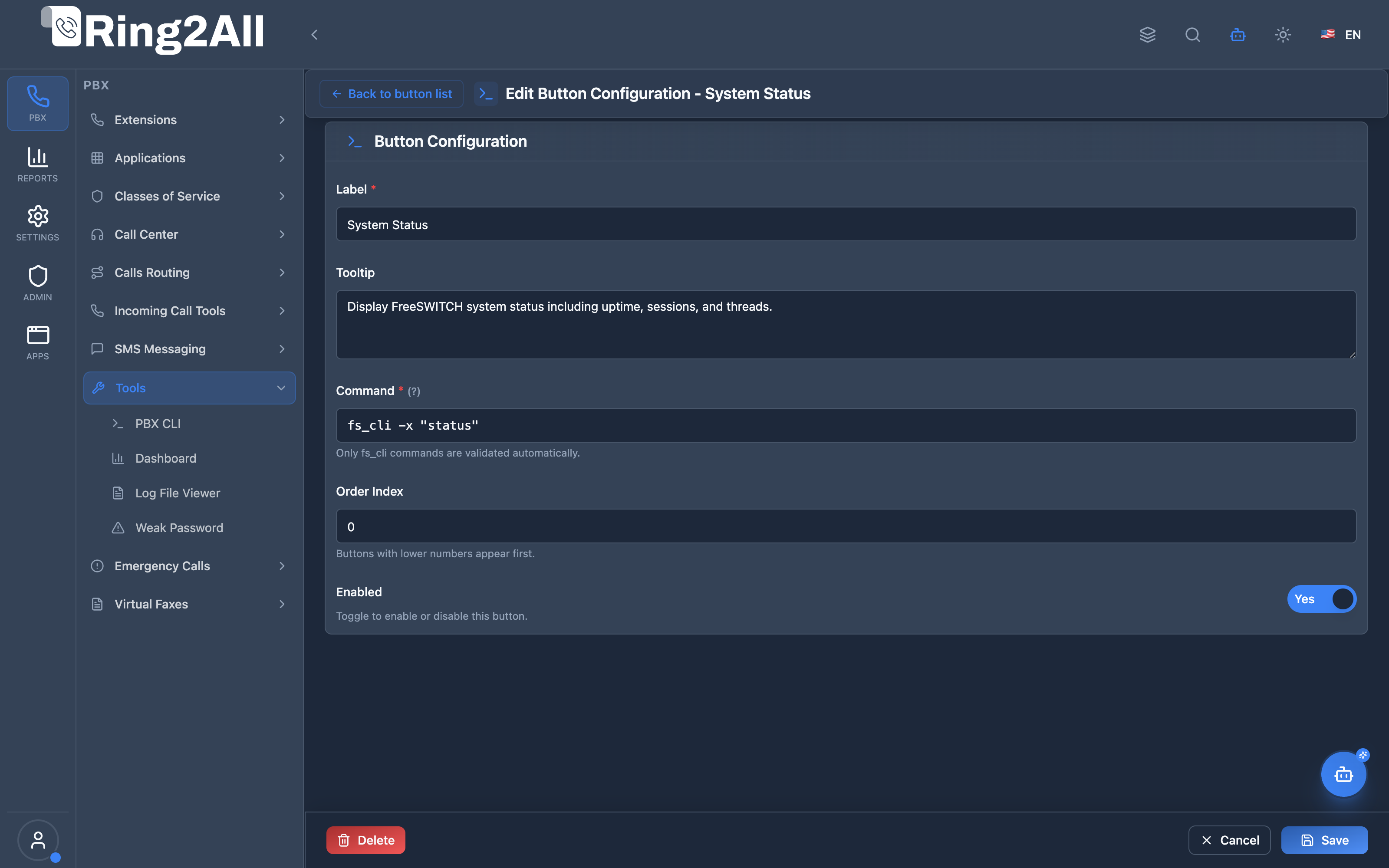
Button Configuration Form
Section titled “Button Configuration Form”Standard configuration form for defining button label, tooltip description, custom Telephony Server command string, display order index, and enabled toggle.
1. Module Overview (Technical)
Section titled “1. Module Overview (Technical)”What is the PBX CLI?
Section titled “What is the PBX CLI?”The PBX CLI (Command Line Interface) module provides real-time, browser-native administrative access to the underlying Telephony Server telephony core (fs_cli) without requiring external SSH keys, terminal clients (PuTTY/Terminal), or perimeter firewall port openings.
Technical Architecture
Section titled “Technical Architecture”- Frontend: Integrates
@xterm/xtermwith@xterm/addon-fitto provide a full ANSI-colored virtual terminal emulator directly inside the React interface. - Transport: Utilizes secure WebSockets (
wss://<domain>/ws/telephony/cli) for zero-latency, bi-directional command dispatch and real-time streaming output. - Backend Execution: The Fastify backend bridges incoming terminal requests to the local Telephony daemon via Event Socket Library (ESL) or authenticated subprocess execution (
fs_cli -x "<command>"). - Security Isolation: Commands are validated against an administrative whitelist, preventing unauthorized arbitrary bash command execution outside telephony boundaries.
┌─────────────────────────────────────────────────────────────────┐│ PBX CLI Architecture │├─────────────────────────────────────────────────────────────────┤│ ││ Web Browser (Admin) PBX Backend & Engine ││ ┌─────────────────────────┐ ┌─────────────────────┐ ││ │ PBX CLI Terminal │◄──WSS───►│ Fastify WebSocket │ ││ │ (xterm.js + ANSI Color)│ │ Service Gateway │ ││ │ │ └──────────┬──────────┘ ││ │ Quick Command Slots │ │ ESL / Socket││ │ [Status] [Reload XML] │ ▼ ││ │ [Channels] [Calls] │ ┌─────────────────────┐ ││ │ [Sofia Status] │ │ Telephony Server 1.11 Core│ ││ └─────────────────────────┘ │ (fs_cli Daemon) │ ││ └─────────────────────┘ │└─────────────────────────────────────────────────────────────────┘2. Module Overview (Commercial / Business)
Section titled “2. Module Overview (Commercial / Business)”Business Value & ROI
Section titled “Business Value & ROI”- Zero-Footprint Administration: Telecom engineers and NOC technicians can troubleshoot telephony issues from any modern browser (desktop, tablet, or laptop) without needing VPN profiles or SSH credentials installed on client devices.
- Reduced Human Error: One-click quick action buttons (e.g. Reload XML, System Status, Show Calls) execute tested commands accurately, eliminating terminal typos that could disrupt live services.
- Granular RBAC: Telephony operators can be granted access to execute routine PBX diagnostic commands through the web portal without being given root operating system credentials.
- Instant Triage: Rapidly inspect registration states, active media bugs, SIP profiles, and channel drops during customer escalation calls.
3. Module Overview (End User / Administrator)
Section titled “3. Module Overview (End User / Administrator)”Administrator Experience
Section titled “Administrator Experience”- Execute any valid Telephony Server command interactively in the terminal input box.
- Press
Enterto run; useUpandDownarrow keys to cycle through command history. - Click any of the pre-configured quick buttons to instantly run status, reload, or diagnostic scripts.
- Rearrange and customize up to 24 shortcut buttons tailored to daily NOC workflows.
4. Quick Command Button Slots & Configuration
Section titled “4. Quick Command Button Slots & Configuration”Administrators can configure up to 24 customizable button slots stored in public.pbx_cli_button_configs:
Pre-Configured Default Shortcuts
Section titled “Pre-Configured Default Shortcuts”| Order | Label | Executed Command | Description |
|---|---|---|---|
| 0 | System Status | fs_cli -x "status" |
Current uptime, session count, and CPU usage. |
| 1 | Version Info | fs_cli -x "version" |
Installed Telephony Server version and architecture. |
| 2 | SIP Registrations | fs_cli -x "sofia status registration" |
Active registered SIP extensions and IP contacts. |
| 3 | Reload XML | fs_cli -x "reloadxml" |
Flush and reload dialplans, extensions, and profiles. |
| 4 | SIP Profiles | fs_cli -x "sofia status" |
Health status of internal and external SIP gateways. |
| 5 | Sofia Internal | fs_cli -x "sofia status profile internal" |
Details of port 5060/5080 internal SIP profile. |
| 6 | Sofia External | fs_cli -x "sofia status profile external" |
Details of external carrier SIP trunk profile. |
| 7 | Active Calls | fs_cli -x "show calls" |
Real-time active bridged and ringing calls. |
| 8 | Active Channels | fs_cli -x "show channels" |
Real-time audio media channels and UUIDs. |
| 9 | Call Summary | fs_cli -x "show calls count" |
Aggregate count of active and total sessions. |
Button Form Fields Reference
Section titled “Button Form Fields Reference”| Field Name | Description | Example |
|---|---|---|
| Label | Button text displayed on the slot. | Sofia Status |
| Tooltip | Explanatory hover tooltip. | Inspects SIP profile bindings and ports |
| Command | Complete command executed by the backend. | fs_cli -x "sofia status" |
| Order Index | Display position (0-based integer). | 4 |
| Enabled | Toggle button visibility in the terminal slot grid. | true |
5. Telephony Server CLI Command Reference
Section titled “5. Telephony Server CLI Command Reference”Common administrative diagnostic commands executable in the terminal:
Dialplan & Configuration
Section titled “Dialplan & Configuration”reloadxml: Compiles and loads all XML dialplans, SIP profiles, and directory changes.eval ${variable_name}: Evaluates global channel or system variables.module_exists mod_sofia: Verifies whether a specific telephony module is loaded into memory.
SIP Sofia Stack Diagnostics
Section titled “SIP Sofia Stack Diagnostics”sofia status: Lists all Sofia SIP profiles and gateways with their state (RUNNING, DOWN).sofia profile internal restart: Safely restarts the internal extension SIP profile.sofia profile external rescan: Scans for newly provisioned SIP gateways without dropping active calls.sofia status profile internal reg: Lists all active registered endpoints on the internal profile.
Call & Channel Monitoring
Section titled “Call & Channel Monitoring”show calls: Lists all active calls, caller ID, destination, and duration.show channels: Displays individual media legs, codecs, and RTP IP/port assignments.uuid_kill <uuid>: Terminates a specific stuck call channel immediately.uuid_dump <uuid>: Outputs comprehensive diagnostic variables for a live call leg.
6. Common Scenarios & Examples
Section titled “6. Common Scenarios & Examples”Scenario 1: Applying Dialplan Changes
Section titled “Scenario 1: Applying Dialplan Changes”- After editing an IVR or Inbound Route in the web UI, navigate to PBX Tools → PBX CLI.
- Click the Reload XML quick button.
- Observe the green confirmation line in the terminal:
+OK [XML reloaded].
Scenario 2: Investigating Extension Registration Drops
Section titled “Scenario 2: Investigating Extension Registration Drops”- Open the PBX CLI terminal.
- Click SIP Registrations.
- Inspect whether extension
2000appears with its current LAN IP address, port, and expiration time (expires: 3600).
7. Limitations & Security Safeguards
Section titled “7. Limitations & Security Safeguards”- No Bash Escape: The execution engine rejects pipe chains (
|), redirects (>), and command separators (;,&&) that attempt to escape Telephony Server CLI boundaries into system shell commands. - Tenant Scope Isolation: Commands are sanitized against the active tenant domain context to prevent cross-tenant diagnostic snooping.
- Timeout Protection: Long-running commands automatically terminate after 5,000 ms to prevent server thread starvation.
8. Model Context Protocol (MCP) AI Integration
Section titled “8. Model Context Protocol (MCP) AI Integration”The Ring2All Platform Copilot connects directly with the PBX CLI engine through the Model Context Protocol (MCP), providing authorized AI-assisted diagnosis, log triage, status monitoring, and dialplan cache reloads.
Exposed MCP Tools
Section titled “Exposed MCP Tools”| Tool Name | Operation | Primary Parameters | Description |
|---|---|---|---|
execute_fs_cli_command |
Diagnostic Execution | command (string) |
Executes an authorized Telephony Server diagnostic CLI command. Destructive commands (shutdown, crash, restart, kill) are strictly blocked. |
reload_telephony_xml |
Cache Synchronization | (none) | Safely reloads Telephony Server dynamic XML dialplan, Sofia profiles, and runtime configuration (reloadxml). |
get_system_health |
Status Inspection | (none) | Queries uptime, memory, total active channels, sessions per second, and core status. |
AI Safety Safeguards & Execution Controls
Section titled “AI Safety Safeguards & Execution Controls”- Destructive Command Guard: Commands matching
shutdown,crash,fsctl shutdown,fsctl hupall,halt,restart,kill, or system shell escapes (eval system,rm -rf) are rejected immediately by policy guards. - Rate-Limiting & Timeouts: Execution terminates automatically if output is not returned within 3,000 ms.
- Audit Logging: All CLI commands executed by the AI Copilot are recorded in the central audit trail with tenant context and originating user credentials.
Example MCP Payloads
Section titled “Example MCP Payloads”1. Checking Active Channels & Sofia Gateway Status (execute_fs_cli_command)
Section titled “1. Checking Active Channels & Sofia Gateway Status (execute_fs_cli_command)”{ "command": "sofia status gateway"}Response:
{ "success": true, "data": { "command": "sofia status gateway", "output": "=================================================================================================\nName Profile User Server State\n=================================================================================================\ngw_telnyx internal ring2all sip.telnyx.com REGED\n=================================================================================================" }}2. Reloading Telephony XML Dialplan (reload_telephony_xml)
Section titled “2. Reloading Telephony XML Dialplan (reload_telephony_xml)”{}Response:
{ "success": true, "data": { "message": "Telephony Server XML configuration reloaded successfully", "raw": "+OK [Success]\n" }}Copilot Natural Language Prompts
Section titled “Copilot Natural Language Prompts”- “Show me the status of all registered SIP trunks in Telephony Server.”
- “Check if there are any active calls or stuck channels right now.”
- “Run a Sofia status check on the internal profile.”
- “Reload the telephony XML dialplan because I just added a new outbound route.”
9. Troubleshooting Tips
Section titled “9. Troubleshooting Tips”| Symptom | Probable Cause | Corrective Action |
|---|---|---|
| Terminal displays “Connecting…” | WebSocket connection blocked | Ensure firewall allows WebSocket upgrades on wss:// over HTTPS port 443. |
| Error: “Telephony Server is not running” | Telephony service down | Verify service state via systemctl status freeswitch on the server host. |
| Command returns “-ERR connection refused” | Event socket password mismatch | Verify event_socket.conf.xml credentials match backend configuration. |
10. Database Schema
Section titled “10. Database Schema”Custom quick-action buttons are stored in ss_admin in table pbx_cli_button_configs:
CREATE TABLE public.pbx_cli_button_configs ( id SERIAL PRIMARY KEY, uuid TEXT NOT NULL UNIQUE DEFAULT gen_random_uuid()::text, tenant_id INTEGER NOT NULL REFERENCES tenants(id) ON DELETE CASCADE, label TEXT NOT NULL, tooltip TEXT, command TEXT NOT NULL, order_index INTEGER DEFAULT 0, enabled BOOLEAN DEFAULT TRUE, created_by INTEGER REFERENCES users(id) ON DELETE SET NULL, updated_by INTEGER REFERENCES users(id) ON DELETE SET NULL, created_at TIMESTAMPTZ DEFAULT now(), updated_at TIMESTAMPTZ DEFAULT now());11. Glossary
Section titled “11. Glossary”- CLI: Command Line Interface.
- ESL: Event Socket Library — Telephony Server native C/socket communication protocol.
- fs_cli: Native Telephony Server command-line interface client.
- Sofia: Telephony Server SIP signaling stack module (
mod_sofia). - UUID: Universally Unique Identifier assigned to each active call channel.