

OpenVPN Client Module Documentation
Table of Contents
Section titled “Table of Contents”- Navigation & Access
- Screenshots & Visual Interface
- 🎯 User Roles & Key Capabilities
- Module Overview (Technical)
- Module Overview (Commercial/Business)
- Module Overview (End User/Administrator)
- Configuration Sections
- Settings Reference
- Model Context Protocol (MCP) AI Integration
- Common Scenarios & Examples
- Limitations & Important Notes
- Troubleshooting Tips
- Glossary
Navigation & Access
Section titled “Navigation & Access”To access the OpenVPN Client module:
- Log in to the Ring2All Web Portal (
https://<domain-or-ip>/login). - In the left navigation sidebar, expand Administration.
- Under Network, click OpenVPN Client (
/admin/network/openvpn-client). - Upload OpenVPN client configuration files (
.ovpn), monitor real-time tunnel link status, verify assigned virtual IPs, and inspect bidirectional network traffic.
Screenshots & Visual Interface
Section titled “Screenshots & Visual Interface”Site-to-Site OpenVPN Client Gateway
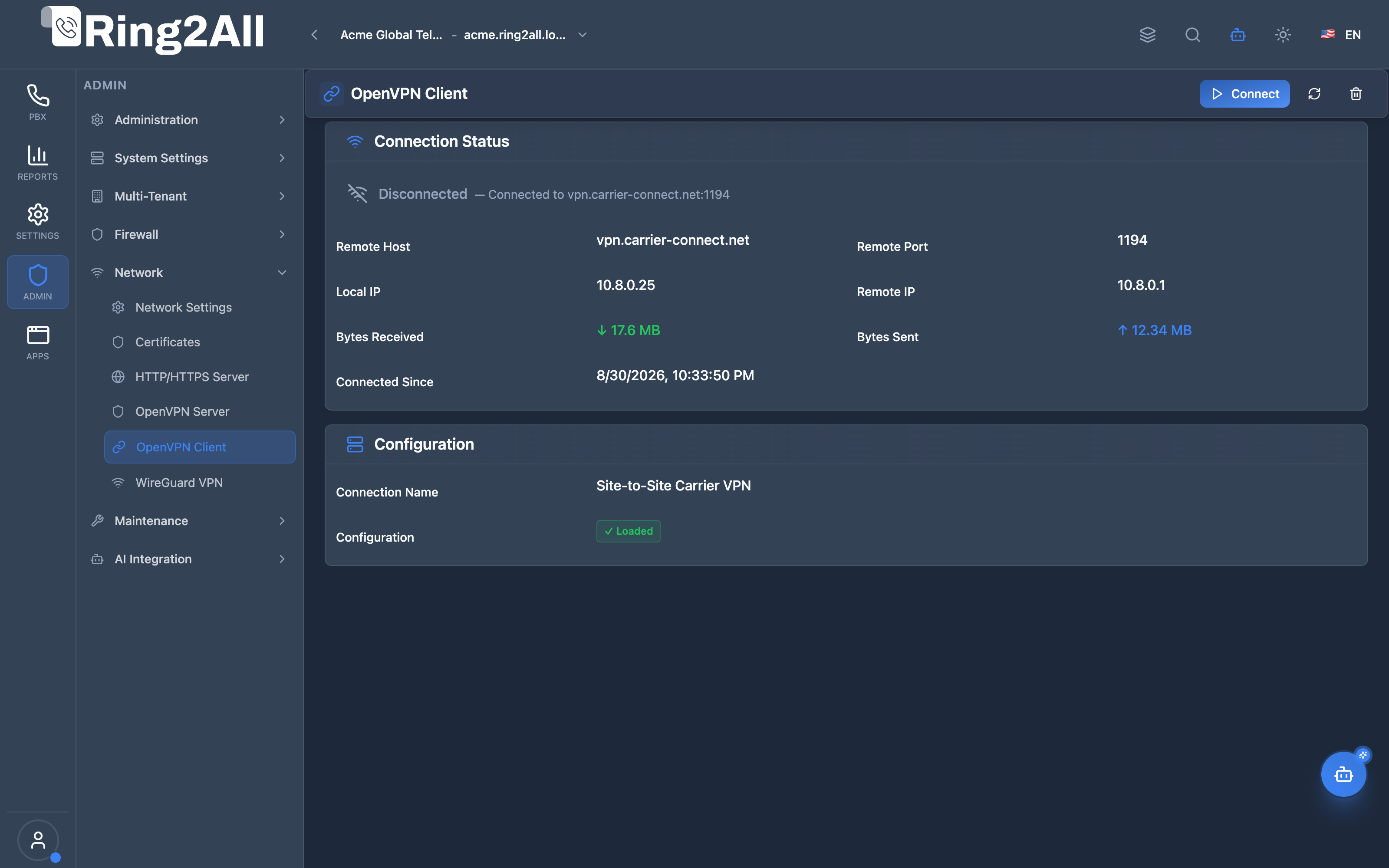
Section titled “Site-to-Site OpenVPN Client Gateway”Operational tunnel interface presenting active connection state, remote carrier VPN endpoint (vpn.carrier-connect.net:1194), local VPN IP assignment (10.8.0.25), gateway routing, connection uptime, and bidirectional byte counters (Bytes In / Bytes Out).
🎯 User Roles & Key Capabilities
Section titled “🎯 User Roles & Key Capabilities”| Role | Access Level | Responsibilities & Capabilities |
|---|---|---|
| PBX Super Administrator | Full Access (RW) |
Upload site-to-site .ovpn configuration profiles, manage systemd tunnel services (openvpn-client@site-to-site), and initiate connect/disconnect requests. |
| Network & Security Engineer | Full Operations (RW) |
Verify cryptographic handshake parameters, check MTU fragmentation, review remote carrier routes, and inspect IP routing tables. |
| DevOps & Cloud Operator | Monitoring (RO) |
Monitor tunnel connection uptime, detect automatic reconnect loops, and alert on traffic volume drops. |
| AI Platform Copilot / MCP Agent | Diagnostic & Telemetry (RO) |
Execute get_openvpn_client_status to evaluate site-to-site tunnel health, transfer metrics, and gateway reachability. |
1. Module Overview (Technical)
Section titled “1. Module Overview (Technical)”What Is OpenVPN Client?
Section titled “What Is OpenVPN Client?”OpenVPN Client is a site-to-site VPN module that connects the PBX server to another network via VPN. This enables secure connectivity between data centers, branch offices, or cloud environments.
Architecture
Section titled “Architecture”┌─────────────────────────────────────────────────────────────────┐│ OpenVPN Client Architecture │├─────────────────────────────────────────────────────────────────┤│ ││ Local PBX Server ││ ┌──────────────────────────────────────────────────────────┐ ││ │ │ ││ │ OpenVPN Client │ ││ │ ┌────────────────────────────────────────────────────┐ │ ││ │ │ │ │ ││ │ │ .ovpn Configuration File │ │ ││ │ │ ├─ Remote Host: vpn.datacenter.com │ │ ││ │ │ ├─ Remote Port: 1194 │ │ ││ │ │ ├─ Protocol: UDP │ │ ││ │ │ └─ Certificates embedded │ │ ││ │ │ │ │ ││ │ └────────────────────────────────────────────────────┘ │ ││ │ │ ││ │ Status: ● Connected │ ││ │ Local IP: 10.8.0.5 │ ││ │ Remote IP: 10.8.0.1 │ ││ │ │ ││ └──────────────────────────────────────────────────────────┘ ││ │ ││ │ Encrypted VPN Tunnel ││ │ ││ ▼ ││ ┌──────────────────────────────────────────────────────────┐ ││ │ Remote Network / Data Center │ ││ │ │ ││ │ ┌─────────────┐ ┌─────────────┐ ┌─────────────┐ │ ││ │ │ VPN Server │ │ SIP Trunk │ │ Database │ │ ││ │ │ 10.8.0.1 │ │ 10.0.0.10 │ │ 10.0.0.20 │ │ ││ │ └─────────────┘ └─────────────┘ └─────────────┘ │ ││ │ │ ││ └──────────────────────────────────────────────────────────┘ ││ │└─────────────────────────────────────────────────────────────────┘2. Module Overview (Commercial/Business)
Section titled “2. Module Overview (Commercial/Business)”Business Value
Section titled “Business Value”OpenVPN Client provides secure site connectivity:
| Without Site VPN | With Site VPN |
|---|---|
| Public internet | Private tunnel |
| Exposed services | Secured access |
| Complex routing | Simple tunnel |
| Multiple configs | Single connection |
Use Cases
Section titled “Use Cases”-
Data Center Connection
- Connect to main DC
- Access internal services
-
Branch Office Link
- Site-to-site tunnel
- Unified network
-
Cloud Integration
- AWS/Azure VPN
- Hybrid deployment
-
Trunk Security
- SIP over VPN
- Secure voice
Feature Highlights
Section titled “Feature Highlights”| Feature | Benefit |
|---|---|
| .ovpn Upload | Easy configuration |
| One-Click Connect | Simple control |
| Status Monitoring | Connection visibility |
| Traffic Stats | Bandwidth tracking |
| Auto-Reconnect | Reliable connection |
3. Module Overview (End User/Administrator)
Section titled “3. Module Overview (End User/Administrator)”What Can You Do?
Section titled “What Can You Do?”- Upload .ovpn configuration file
- Connect/disconnect VPN
- Monitor connection status
- View traffic statistics
- See connection details
- Delete configuration
OpenVPN Client Interface
Section titled “OpenVPN Client Interface”┌─────────────────────────────────────────────────────────────────┐│ OpenVPN Client │├─────────────────────────────────────────────────────────────────┤│ ││ Site-to-site VPN connection to another server ││ ││ ▼ Configuration ││ Upload your .ovpn configuration file ││ ││ ┌─────────────────────────────────────────────────────────────┐││ │ │││ │ Connection Name: datacenter-vpn │││ │ │││ │ Configuration: ● Loaded │││ │ │││ │ [Connect] [Delete Configuration] │││ │ │││ └─────────────────────────────────────────────────────────────┘││ ││ ▼ Connection Status ││ Current VPN connection details ││ ││ ┌─────────────────────────────────────────────────────────────┐││ │ │││ │ Status: ● Connected │││ │ │││ │ Remote Host: vpn.datacenter.com │││ │ Remote Port: 1194 │││ │ │││ │ ───────────────────────────────────────────── │││ │ │││ │ IP Addresses: │││ │ Local IP: 10.8.0.5 │││ │ Remote IP: 10.8.0.1 │││ │ │││ │ ───────────────────────────────────────────── │││ │ │││ │ Data Transfer: │││ │ Bytes Received: 1.2 GB │││ │ Bytes Sent: 456 MB │││ │ │││ │ Connected Since: 2024-01-15 08:30:00 │││ │ Last Checked: 2024-01-16 14:22:15 │││ │ │││ │ [Disconnect] [Refresh Status] │││ │ │││ └─────────────────────────────────────────────────────────────┘││ │└─────────────────────────────────────────────────────────────────┘No Configuration State
Section titled “No Configuration State”┌─────────────────────────────────────────────────────────────────┐│ OpenVPN Client │├─────────────────────────────────────────────────────────────────┤│ ││ Site-to-site VPN connection to another server ││ ││ ▼ Configuration ││ Upload your .ovpn configuration file ││ ││ ┌─────────────────────────────────────────────────────────────┐││ │ │││ │ ⚠️ No configuration uploaded │││ │ │││ │ Upload an .ovpn file to configure the site-to-site │││ │ VPN connection │││ │ │││ │ [Upload Configuration] │││ │ │││ └─────────────────────────────────────────────────────────────┘││ │└─────────────────────────────────────────────────────────────────┘Upload Configuration Modal
Section titled “Upload Configuration Modal”┌─────────────────────────────────────────────────────────────────┐│ Upload .ovpn File │├─────────────────────────────────────────────────────────────────┤│ ││ Select or drag and drop your OpenVPN configuration file ││ ││ ┌─────────────────────────────────────────────────────────────┐││ │ │││ │ 📁 │││ │ │││ │ Drop .ovpn file here or click to browse │││ │ │││ └─────────────────────────────────────────────────────────────┘││ ││ Selected file: datacenter.ovpn ││ ││ [Upload and Save] [Cancel] ││ │└─────────────────────────────────────────────────────────────────┘Quick Tips
Section titled “Quick Tips”[!TIP] Complete .ovpn: Ensure certificates are embedded in the file.
[!TIP] Refresh Status: Click to update connection stats.
[!WARNING] Delete: Deleting config will disconnect active connection.
4. Configuration Sections
Section titled “4. Configuration Sections”Configuration Section
Section titled “Configuration Section”| Field | Description |
|---|---|
| Connection Name | VPN connection identifier |
| Configuration | Loaded status |
| Upload | .ovpn file upload |
| Delete | Remove configuration |
Status Section
Section titled “Status Section”| Field | Description |
|---|---|
| Status | Connected/Disconnected |
| Remote Host | VPN server address |
| Remote Port | VPN port |
| Local IP | Assigned VPN IP |
| Remote IP | Server tunnel IP |
| Bytes Received | Download traffic |
| Bytes Sent | Upload traffic |
| Connected Since | Connection start time |
| Last Checked | Last status update |
5. Settings Reference
Section titled “5. Settings Reference”Connection States
Section titled “Connection States”| Status | Icon | Description |
|---|---|---|
| Connected | ● | Active VPN tunnel |
| Disconnected | ○ | No connection |
| Connecting | ◐ | Establishing tunnel |
| Error | ⊘ | Connection failed |
.ovpn File Requirements
Section titled “.ovpn File Requirements”| Component | Required | Notes |
|---|---|---|
| Remote host | Yes | Server address |
| Remote port | Yes | Usually 1194 |
| Certificates | Yes | CA, cert, key |
| Protocol | Yes | UDP or TCP |
Example .ovpn Structure
Section titled “Example .ovpn Structure”clientdev tunproto udpremote vpn.datacenter.com 1194resolv-retry infinitenobindpersist-keypersist-tunca [inline]cert [inline]key [inline]cipher AES-256-GCMauth SHA256verb 3
<ca>-----BEGIN CERTIFICATE-----...-----END CERTIFICATE-----</ca>
<cert>-----BEGIN CERTIFICATE-----...-----END CERTIFICATE-----</cert>
<key>-----BEGIN PRIVATE KEY-----...-----END PRIVATE KEY-----</key>Model Context Protocol (MCP) AI Integration
Section titled “Model Context Protocol (MCP) AI Integration”The OpenVPN Client module exposes programmatic status diagnostics to the Model Context Protocol (MCP), allowing operators and autonomous NOC assistants to continuously audit site-to-site VPN link health.
Available MCP Tools
Section titled “Available MCP Tools”| Tool Name | Scope | Description |
|---|---|---|
get_openvpn_client_status |
Tunnel Telemetry (RO) |
Queries the status of the site-to-site OpenVPN Client connection, remote gateway endpoint, tunnel IP, and traffic counters. |
Tool Schemas & Payloads
Section titled “Tool Schemas & Payloads”get_openvpn_client_status
Section titled “get_openvpn_client_status”{ "name": "get_openvpn_client_status", "description": "Queries the status of the site-to-site OpenVPN Client connection, remote gateway endpoint, tunnel IP, and traffic counters.", "parameters": { "type": "object", "properties": {} }}Realistic Execution Response:
{ "success": true, "data": { "client": { "name": "Site-to-Site Carrier VPN", "serviceRunning": true, "connectionState": "connected", "remoteHost": "vpn.carrier-connect.net", "remotePort": 1194, "localIp": "10.8.0.25", "remoteIp": "10.8.0.1", "bytesReceived": 15849200, "bytesSent": 12493020, "connectedSince": "2026-09-08T08:15:00Z", "lastChecked": "2026-09-08T10:45:00Z" } }}Bilingual Natural Language Prompt Examples
Section titled “Bilingual Natural Language Prompt Examples”English Prompts
Section titled “English Prompts”- “Copilot, check if the site-to-site OpenVPN client tunnel is connected and show the assigned local IP.”
- “What is the remote gateway address and current byte transfer count for the OpenVPN client?”
- “Verify if the OpenVPN client systemd service is active or reported disconnected.”
Spanish Prompts
Section titled “Spanish Prompts”- “Copilot, comprueba si el túnel cliente OpenVPN está conectado y qué IP virtual tiene asignada.”
- “¿Cuál es la dirección del host remoto y cuántos bytes se han transferido por la VPN?”
- “Verifica si el servicio cliente de OpenVPN se encuentra en estado connected o disconnected.”
Enterprise Safeguards & Execution Boundaries
Section titled “Enterprise Safeguards & Execution Boundaries”- Tenant-Scoped Connection State: Tunnel metadata is stored in
public.openvpn_connectionisolated bytenant_id. Sub-tenant assistants cannot inspect site-to-site links belonging to other tenants. - Read-Only Inspection Safety:
get_openvpn_client_statusqueries systemd status (systemctl is-active openvpn-client@site-to-site) and database counters without interrupting ongoing VoIP audio RTP sessions passing through the tunnel. - Controlled Tunnel Lifecycle: Tunnel disconnects and reconnections require explicit administrative write access via the Web UI or authenticated API routes.
6. Common Scenarios & Examples
Section titled “6. Common Scenarios & Examples”Scenario 1: Upload Configuration
Section titled “Scenario 1: Upload Configuration”- Click Upload Configuration
- Drag .ovpn file or click to browse
- Select file
- Click Upload and Save
- Configuration now loaded
Scenario 2: Connect to VPN
Section titled “Scenario 2: Connect to VPN”- Ensure configuration is loaded
- Click Connect
- Wait for connection
- Status shows “Connected”
- View assigned IP addresses
Scenario 3: Monitor Connection
Section titled “Scenario 3: Monitor Connection”- View Connection Status section
- Check Remote Host and Port
- View Local/Remote IPs
- Check Data Transfer stats
- Click Refresh Status for updates
Scenario 4: Replace Configuration
Section titled “Scenario 4: Replace Configuration”- Click Delete Configuration
- Confirm deletion
- Connection disconnects
- Upload new .ovpn file
- Connect with new config
7. Limitations & Important Notes
Section titled “7. Limitations & Important Notes”Technical Notes
Section titled “Technical Notes”[!NOTE] Single Connection: Only one VPN client connection.
[!NOTE] Embedded Certs: Certificates must be embedded in .ovpn.
[!WARNING] Delete Disconnects: Deleting config terminates connection.
Best Practices
Section titled “Best Practices”- Complete Config: Use .ovpn with embedded certificates
- Test First: Verify .ovpn works before uploading
- Monitor Status: Check connection regularly
- Secure File: Protect .ovpn file (contains private key)
- Backup Config: Keep copy of working .ovpn
.ovpn File Tips
Section titled “.ovpn File Tips”| Tip | Description |
|---|---|
| Inline certs | Use <ca>, <cert>, <key> sections |
| Single file | All config in one .ovpn |
| Test locally | Verify with OpenVPN client first |
| Absolute paths | Avoid external file references |
8. Troubleshooting Tips
Section titled “8. Troubleshooting Tips”Common Issues
Section titled “Common Issues”| Symptom | Possible Cause | Solution |
|---|---|---|
| Upload fails | Invalid format | Check .ovpn structure |
| Can’t connect | Wrong server | Verify remote host |
| Connection drops | Network issue | Check internet |
| Error state | Bad certificates | Regenerate .ovpn |
Check VPN Status
Section titled “Check VPN Status”# Check OpenVPN client servicesystemctl status openvpn@client
# View client logtail -f /var/log/openvpn/client.log
# Check tunnel interfaceip addr show tun0
# Test connectivityping 10.8.0.1Verify Configuration
Section titled “Verify Configuration”# Test .ovpn file locallyopenvpn --config client.ovpn --verb 4
# Check for syntax errorsopenvpn --config client.ovpn --show-tls9. Glossary
Section titled “9. Glossary”| Term | Definition |
|---|---|
| .ovpn | OpenVPN config file |
| Site-to-Site | Network-to-network VPN |
| Tunnel | Encrypted connection |
| TUN | Network tunnel device |
| Client | VPN initiator |
| Remote | VPN server side |
Documentation last updated: January 2026