

Send Fax Module Documentation
Table of Contents
Section titled “Table of Contents”- Navigation & Access
- Screenshots & Visual Interface
- Module Overview (Technical)
- Module Overview (Commercial/Business)
- Module Overview (End User/Administrator)
- Sending Process
- Supported Formats
- Common Scenarios & Examples
- Limitations & Important Notes
- Model Context Protocol (MCP) AI Integration
- Troubleshooting Tips
- Glossary
Navigation & Access
Section titled “Navigation & Access”To access the Fax Sending interface:
- Log in to the Ring2All Web Portal (
https://<domain-or-ip>/login). - In the left navigation sidebar, expand PBX Engine.
- Under Virtual Faxes, click Fax Sending (
/pbx/virtual-faxes/sending). - Select the sending device, enter the recipient fax number, attach your document (PDF or TIFF), and click Send Fax.
Screenshots & Visual Interface
Section titled “Screenshots & Visual Interface”Web Fax Transmission Console
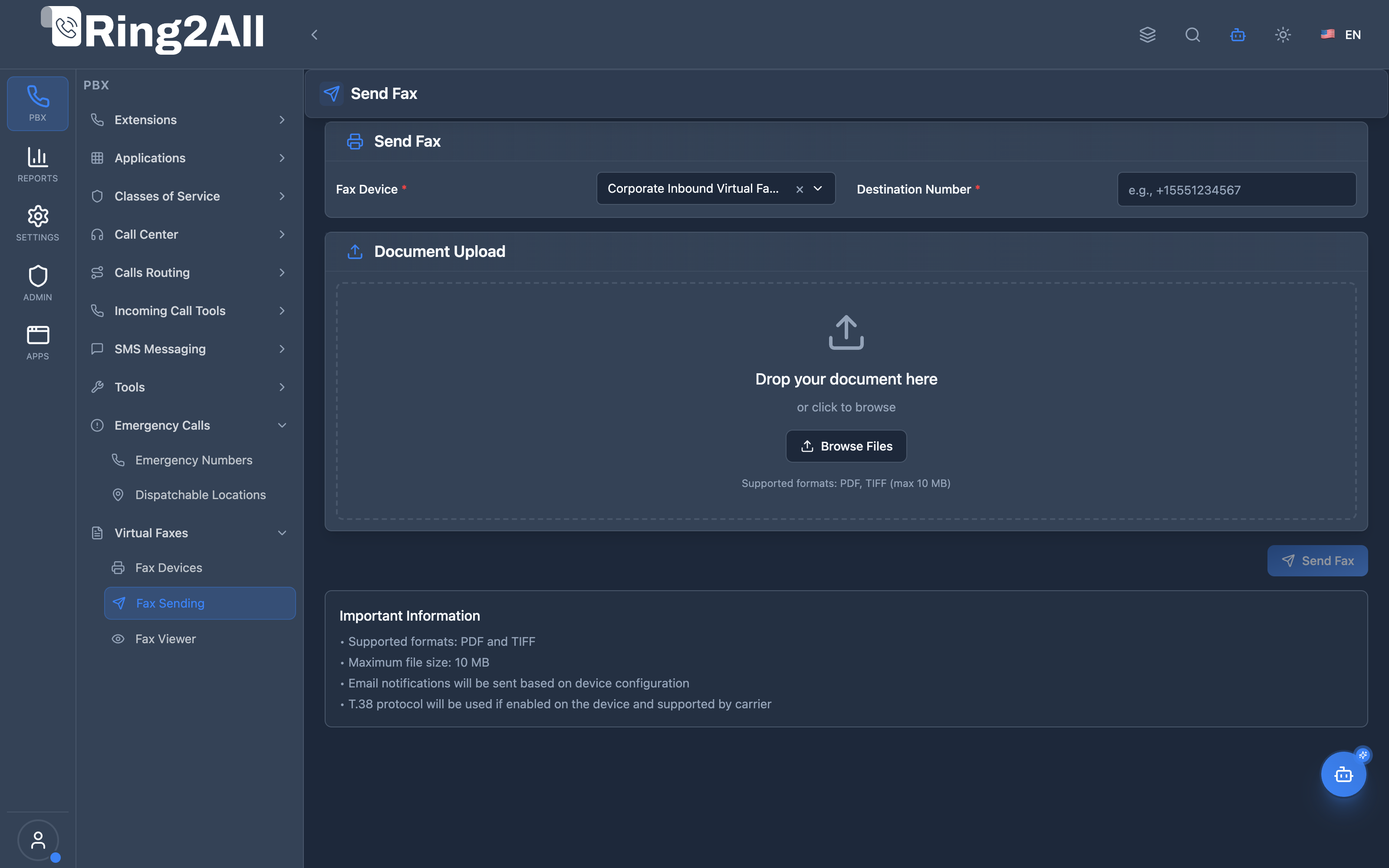
Section titled “Web Fax Transmission Console”Modern outbound fax dispatch dashboard with integrated file upload dropzone, sending endpoint selector, resolution quality options, and real-time transmission feedback.
1. Module Overview (Technical)
Section titled “1. Module Overview (Technical)”What Is Send Fax?
Section titled “What Is Send Fax?”Send Fax is a web-based fax transmission interface that allows users to send documents as faxes through configured fax devices. Documents are uploaded, converted if necessary, and transmitted via Telephony Server’s fax engine.
Architecture
Section titled “Architecture”┌─────────────────────────────────────────────────────────────────┐│ Send Fax Architecture │├─────────────────────────────────────────────────────────────────┤│ ││ Admin Panel ││ ┌──────────────────────────────────────────────────────────┐ ││ │ FaxSendingPage.tsx │ ││ │ │ ││ │ 1. Select fax device │ ││ │ 2. Enter destination number │ ││ │ 3. Upload PDF/TIFF document │ ││ │ 4. Click "Send Fax" │ ││ │ │ ││ └──────────────────────────────────────────────────────────┘ ││ │ ││ ▼ API Call ││ ┌──────────────────────────────────────────────────────────┐ ││ │ Backend Fax API │ ││ │ │ ││ │ 1. Validate file and device │ ││ │ 2. Store document temporarily │ ││ │ 3. Convert PDF to TIFF if needed │ ││ │ 4. Originate call via Telephony Server │ ││ │ │ ││ └──────────────────────────────────────────────────────────┘ ││ │ ││ ▼ Telephony Server Originate ││ ┌──────────────────────────────────────────────────────────┐ ││ │ fax/fax_send.lua │ ││ │ │ ││ │ 1. Load fax device config from public.fax_devices │ ││ │ 2. Configure T.38 / ECM settings │ ││ │ 3. Connect to destination │ ││ │ 4. Transmit fax (txfax) │ ││ │ 5. Send email notification │ ││ │ 6. Log to public.fax_logs │ ││ │ │ ││ └──────────────────────────────────────────────────────────┘ ││ │ ││ ▼ ││ Remote Fax Machine ││ │└─────────────────────────────────────────────────────────────────┘2. Module Overview (Commercial/Business)
Section titled “2. Module Overview (Commercial/Business)”Business Value
Section titled “Business Value”Send Fax provides web-based fax transmission:
| Without Send Fax | With Send Fax |
|---|---|
| Physical fax machine | Web interface |
| Print documents | Upload PDF |
| Manual dialing | Click to send |
| No status tracking | Email notifications |
Use Cases
Section titled “Use Cases”-
Document Transmission
- Send contracts and agreements
- Transmit signed documents
-
Business Communications
- Send invoices to vendors
- Transmit purchase orders
-
Healthcare/Legal
- HIPAA-compliant fax
- Court document filing
-
Remote Work
- Fax from anywhere
- No physical equipment
Feature Highlights
Section titled “Feature Highlights”| Feature | Benefit |
|---|---|
| PDF Support | No conversion needed |
| TIFF Support | Native fax format |
| T.38 Protocol | Reliable FoIP |
| Auto-Retry | Handle busy lines |
| Notifications | Email on success/fail |
| Logging | Full audit trail |
3. Module Overview (End User/Administrator)
Section titled “3. Module Overview (End User/Administrator)”What Can You Do?
Section titled “What Can You Do?”- Select outbound fax device
- Enter destination number
- Upload PDF or TIFF document
- Send fax with one click
- Receive email notifications
- View transmission status
Send Fax Interface
Section titled “Send Fax Interface”┌─────────────────────────────────────────────────────────────────┐│ Send Fax │├─────────────────────────────────────────────────────────────────┤│ ││ Section: Send Fax ││ ├─ Fax Device: [Main Office Fax ▼] ││ │ Only devices with outbound capability shown ││ │ ││ └─ Destination Number: [+15551234567 ] ││ Include country code for international faxes ││ ││ Section: Document Upload ││ ┌──────────────────────────────────────────────────────────┐ ││ │ │ ││ │ 📄 Drop your document here │ ││ │ or click to browse │ ││ │ │ ││ │ [Browse Files] │ ││ │ │ ││ │ Supported formats: PDF, TIFF (max 10 MB) │ ││ │ │ ││ └──────────────────────────────────────────────────────────┘ ││ ││ ℹ️ Important Information: ││ • Supported formats: PDF and TIFF ││ • Maximum file size: 10 MB ││ • Email notifications based on device configuration ││ • T.38 protocol used if enabled and supported ││ ││ [Send Fax] [Cancel] ││ │└─────────────────────────────────────────────────────────────────┘Quick Tips
Section titled “Quick Tips”[!TIP] PDF Format: Upload PDFs directly - they’re converted automatically.
[!TIP] Country Code: Always include country code (e.g., +1) for reliable delivery.
[!CAUTION] File Size: Maximum 10 MB per document.
4. Sending Process
Section titled “4. Sending Process”Step-by-Step Flow
Section titled “Step-by-Step Flow”-
Select Device
- Choose outbound-capable fax device
- Device determines caller ID and settings
-
Enter Destination
- Full phone number with country code
- Example: +15551234567
-
Upload Document
- Drag and drop or browse
- PDF or TIFF format
-
Send
- Click “Send Fax”
- System queues transmission
-
Transmission
- Telephony Server originates call
- T.38 negotiation if enabled
- Document transmitted
-
Notification
- Email sent on success/failure
- Log recorded in database
Retries
Section titled “Retries”| Setting | Default | Description |
|---|---|---|
| Max Retries | 3 | Total retry attempts |
| Retry Interval | 300s | Seconds between retries |
5. Supported Formats
Section titled “5. Supported Formats”PDF Documents
Section titled “PDF Documents”| Aspect | Details |
|---|---|
| Format | PDF 1.0 - 2.0 |
| Conversion | Auto-converted to TIFF |
| Pages | Multi-page supported |
| Color | Converted to B&W |
TIFF Documents
Section titled “TIFF Documents”| Aspect | Details |
|---|---|
| Format | TIFF (Group 3/4 fax) |
| Native | No conversion needed |
| Pages | Multi-page supported |
| Compression | G3/G4 fax compression |
Size Limits
Section titled “Size Limits”| Limit | Value |
|---|---|
| Max File Size | 10 MB |
| Max Pages | Depends on document |
6. Common Scenarios & Examples
Section titled “6. Common Scenarios & Examples”Scenario 1: Send Contract
Section titled “Scenario 1: Send Contract”- Select fax device: “Sales Fax”
- Destination: +14155551234
- Upload: contract.pdf
- Click “Send Fax”
- Receive success email
Scenario 2: International Fax
Section titled “Scenario 2: International Fax”- Select fax device: “International Fax”
- Destination: +442071234567 (UK)
- Upload: invoice.pdf
- Send and wait for confirmation
Scenario 3: Multi-Page Document
Section titled “Scenario 3: Multi-Page Document”- Upload multi-page PDF
- System converts all pages
- Transmits as single fax
- Pages sent sequentially
7. Limitations & Important Notes
Section titled “7. Limitations & Important Notes”Technical Notes
Section titled “Technical Notes”[!NOTE] Outbound Only: This module is for sending only. See Fax Devices for receiving.
[!NOTE] Device Required: Must have fax device with outbound direction enabled.
[!WARNING] Carrier Support: Remote carrier must support fax protocol.
Best Practices
Section titled “Best Practices”- Use T.38: Enable on device for reliability
- Include Country Code: Always use full E.164 format
- Check File Size: Stay under 10 MB limit
- Verify Device: Ensure device is enabled
- Monitor Logs: Check fax viewer for status
8. Model Context Protocol (MCP) AI Integration
Section titled “8. Model Context Protocol (MCP) AI Integration”The Ring2All Platform Copilot connects directly with the Fax Outbound Transmission engine via the Model Context Protocol (MCP), providing conversational document transmission, spooling, recipient normalization, and delivery status tracking.
Exposed MCP Tools
Section titled “Exposed MCP Tools”| Tool Name | Operation | Primary Parameters | Description |
|---|---|---|---|
send_virtual_fax |
Outbound Spooling | fromFaxDevice (string), toNumber (string), documentPath (string, optional), callerIdNumber (string, optional) |
Dispatches an outbound virtual fax job to a remote recipient phone number using an existing domain fax endpoint. |
query_fax_history |
Outbound Transmission Audit | direction (“outbound”), search (string, optional), limit (number) |
Retrieves recent outbound fax delivery attempts, success flags, page counts, and transmission speeds. |
list_fax_devices |
Available Sending Gateways | search (string, optional) |
Lists active fax endpoints available to originate outgoing faxes. |
Transmission Safeguards & Formatting Validation
Section titled “Transmission Safeguards & Formatting Validation”- E.164 Destination Sanitization: Recipient fax numbers are normalized automatically. Punctuation, dashes, and parentheses are stripped to avoid dialplan string injection (
+1 (305) 555-0199→+13055550199). - Sender Verification: The originating device identifier (
fromFaxDevice) is resolved against active domain fax devices. Disabled devices or devices with inbound-only direction cannot be used to dispatch faxes. - Asynchronous Telephony Server Job Spooling: Outbound faxes are inserted into
public.fax_logsand dispatched asynchronously viatxfaxso long transmission handshakes do not block Copilot responses.
Example MCP Payloads
Section titled “Example MCP Payloads”1. Dispatching an Outbound Fax (send_virtual_fax)
Section titled “1. Dispatching an Outbound Fax (send_virtual_fax)”{ "fromFaxDevice": "Main Virtual Fax", "toNumber": "+13055550199", "callerIdNumber": "+17863643150", "documentPath": "/var/lib/ring2all/fax/invoices/INV-9021.pdf"}Response:
{ "success": true, "data": { "message": "Outbound virtual fax transmission queued successfully to +13055550199!", "faxJobId": 412, "fromDevice": "Main Virtual Fax", "fromNumber": "2099", "toNumber": "+13055550199", "status": "queued" }}2. Querying Recent Outbound Fax Dispatches (query_fax_history)
Section titled “2. Querying Recent Outbound Fax Dispatches (query_fax_history)”{ "direction": "outbound", "limit": 5}Copilot Natural Language Prompts
Section titled “Copilot Natural Language Prompts”- “Send a fax to +13055550199 using the Accounting Virtual Fax.”
- “Check if our last outbound fax to +13055550199 went through successfully.”
- “Which fax devices in our domain are configured for outbound transmission?”
- “Show me all failed outbound faxes from today.”
9. Troubleshooting Tips
Section titled “9. Troubleshooting Tips”Common Issues
Section titled “Common Issues”| Symptom | Possible Cause | Solution |
|---|---|---|
| No devices shown | No outbound devices | Create device with outbound direction |
| Send fails | File too large | Reduce file size |
| Invalid format | Wrong file type | Use PDF or TIFF |
| Transmission fails | Remote busy | Retries will occur |
| No notification | Email not configured | Set email_to on device |
Validation Errors
Section titled “Validation Errors”| Error | Meaning |
|---|---|
deviceRequired |
Select a fax device |
destinationRequired |
Enter destination number |
fileRequired |
Upload a document |
invalidFileType |
Only PDF/TIFF allowed |
fileTooLarge |
File exceeds 10 MB |
Check Recent Transmissions
Section titled “Check Recent Transmissions”SELECT direction, remote_number, pages, success, result_text, created_atFROM public.fax_logsWHERE direction = 'outbound' AND domain_id = [domain_id]ORDER BY created_at DESCLIMIT 10;10. Glossary
Section titled “10. Glossary”| Term | Definition |
|---|---|
| txfax | Telephony Server transmit fax |
| T.38 | Fax over IP protocol |
| ECM | Error Correction Mode |
| TIFF | Tagged Image File Format |
| E.164 | International phone format |
| Originate | Telephony Server call initiation |
Documentation last updated: January 2026