

Network Configuration Module Documentation
Table of Contents
Section titled “Table of Contents”- Navigation & Access
- Screenshots & Visual Interface
- 🎯 User Roles & Key Capabilities
- Module Overview (Technical)
- Module Overview (Commercial/Business)
- Module Overview (End User/Administrator)
- Configuration Sections
- Settings Reference
- Model Context Protocol (MCP) AI Integration
- Common Scenarios & Examples
- Limitations & Important Notes
- Troubleshooting Tips
- Glossary
Navigation & Access
Section titled “Navigation & Access”To access the Network Settings module:
- Log in to the Ring2All Web Portal (
https://<domain-or-ip>/login). - In the left navigation sidebar, expand Administration.
- Under Network, click Network Settings (
/admin/network/settings). - In the telephony server list, select any node (e.g.
PBX-Primaryorr2alab) to view and modify network interfaces, IP addresses, netmasks, gateways, DNS resolvers, and system hostnames (/admin/network/settings/:id).
Screenshots & Visual Interface
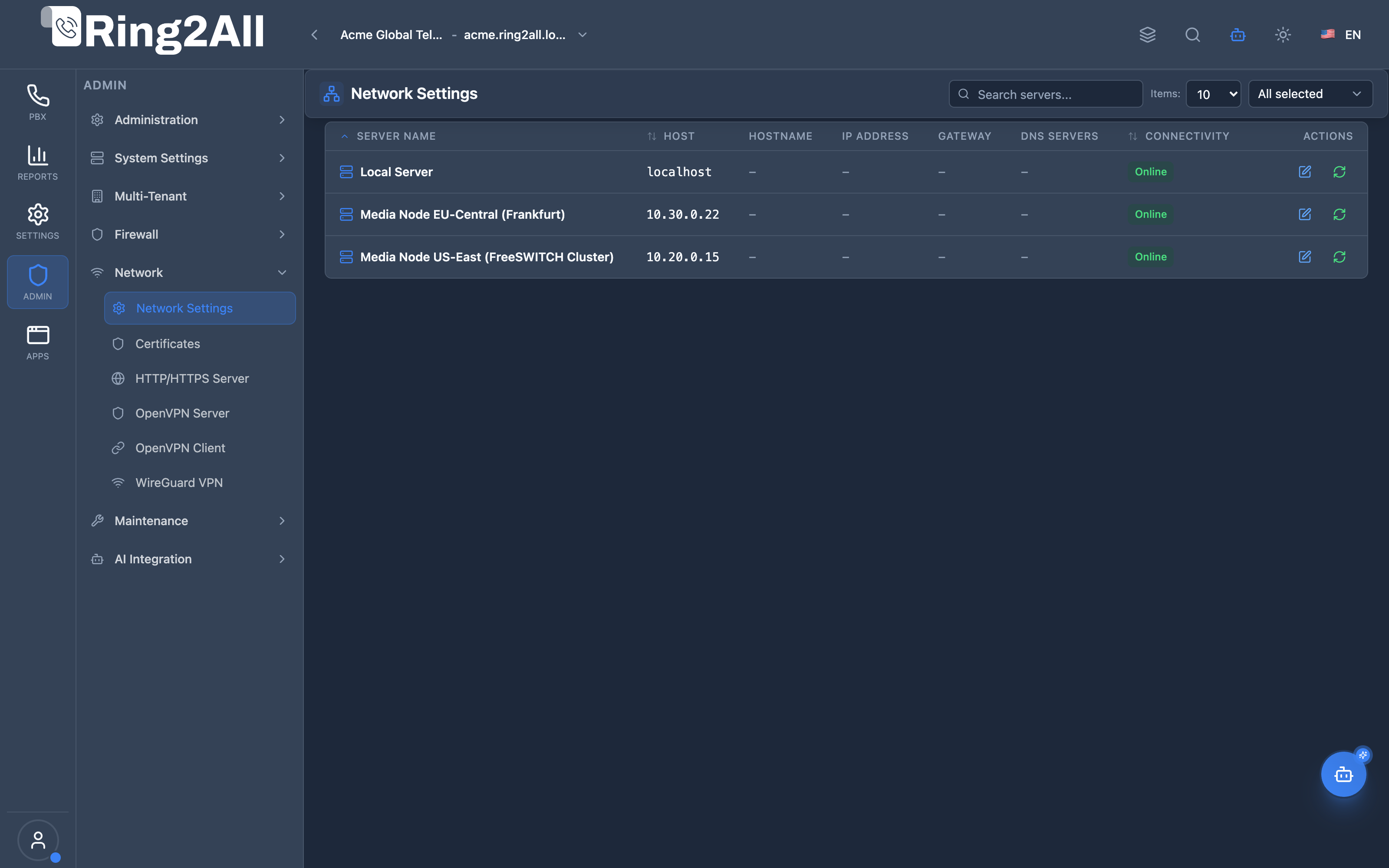
Section titled “Screenshots & Visual Interface”Telephony Servers Network Directory
Section titled “Telephony Servers Network Directory”Primary cluster overview displaying registered telephony nodes, internal IP bindings, data center locations, and real-time network connectivity status.
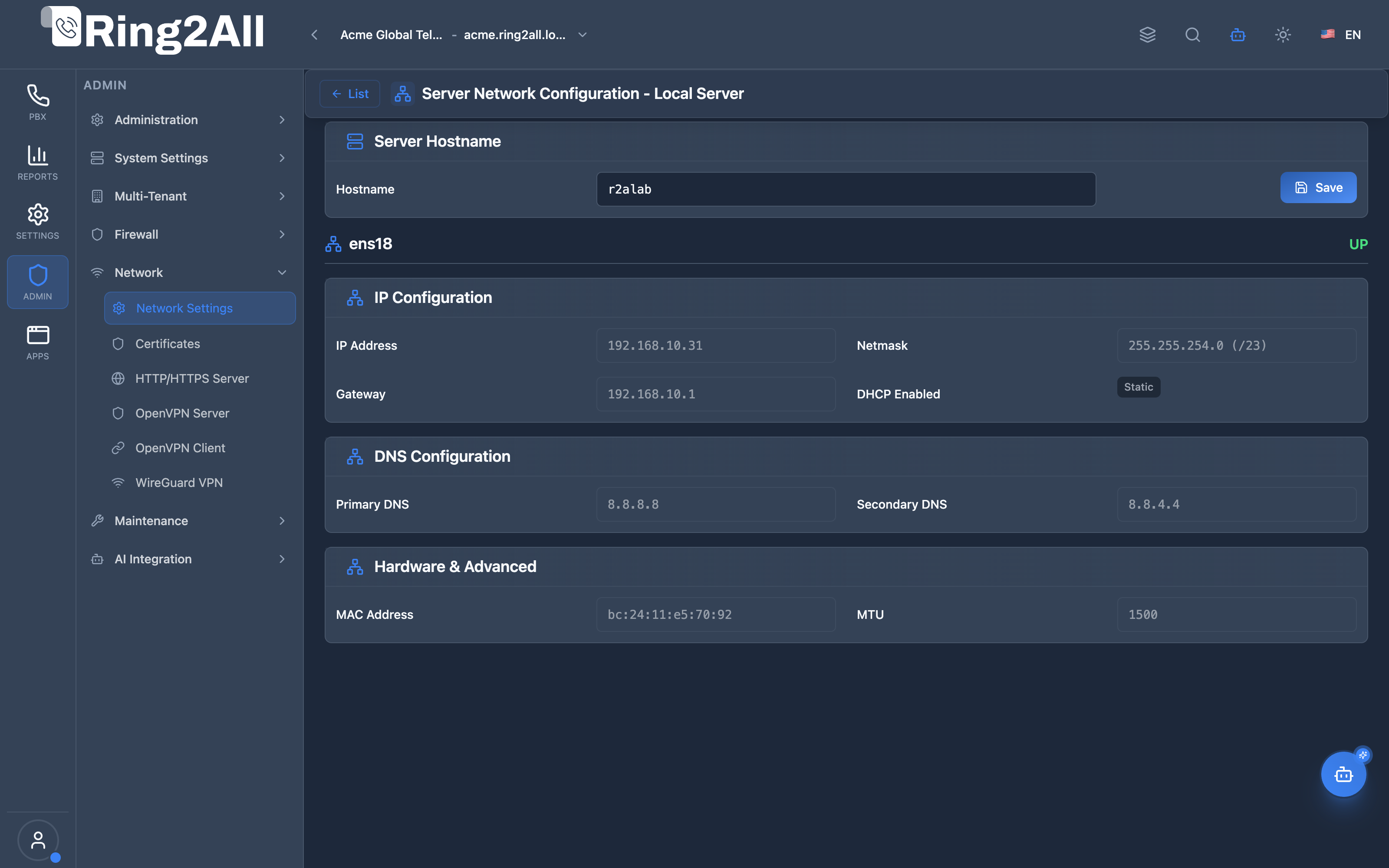
Telephony Server Network Configuration & Adapters
Section titled “Telephony Server Network Configuration & Adapters”Detailed real-time network stack inspector showing system hostname management, active physical and virtual Ethernet adapters (e.g., ens18, lo, docker0), IPv4 assignments, netmask, gateway, and primary/secondary DNS resolvers.
🎯 User Roles & Key Capabilities
Section titled “🎯 User Roles & Key Capabilities”| Role | Access Level | Responsibilities & Capabilities |
|---|---|---|
| PBX Super Administrator | Full Access (RW) |
View and manage network interfaces, configure server hostnames, inspect remote telephony nodes, and review DNS resolver stacks. |
| Network & Infrastructure Engineer | Full Operations (RW) |
Inspect physical and virtual Ethernet adapters, MTU configurations, default gateways, static routes, and subnets for SIP signaling and RTP media. |
| DevOps & Cloud Operator | Read-Only / Diagnostic (RO) |
Monitor network interface operational states (UP/DOWN), verify DHCP lease status, and validate DNS resolution latency. |
| AI Platform Copilot / MCP Agent | Programmatic Diagnostic (RO) |
Execute get_network_interfaces to inspect network stack parameters, diagnose unreachable gateways, and detect IP subnet misconfigurations. |
1. Module Overview (Technical)
Section titled “1. Module Overview (Technical)”What Is Network Configuration?
Section titled “What Is Network Configuration?”Network Configuration is an infrastructure management module that displays and configures network settings for telephony servers. It provides visibility into network interfaces, IP addressing, DNS, and allows hostname configuration.
Architecture
Section titled “Architecture”┌─────────────────────────────────────────────────────────────────┐│ Network Configuration Architecture │├─────────────────────────────────────────────────────────────────┤│ ││ Telephony Servers ││ ┌──────────────────────────────────────────────────────────┐ ││ │ │ ││ │ Server: PBX-Primary │ ││ │ ┌────────────────────────────────────────────────────┐ │ ││ │ │ Interface: eth0 │ │ ││ │ │ ├─ IP: 192.168.1.10 │ │ ││ │ │ ├─ Netmask: 255.255.255.0 │ │ ││ │ │ ├─ Gateway: 192.168.1.1 │ │ ││ │ │ ├─ DNS: 8.8.8.8, 8.8.4.4 │ │ ││ │ │ ├─ MAC: 00:1A:2B:3C:4D:5E │ │ ││ │ │ ├─ DHCP: Disabled (Static) │ │ ││ │ │ ├─ MTU: 1500 │ │ ││ │ │ └─ State: UP │ │ ││ │ └────────────────────────────────────────────────────┘ │ ││ │ │ ││ │ ┌────────────────────────────────────────────────────┐ │ ││ │ │ Interface: eth1 │ │ ││ │ │ ├─ IP: 10.0.0.10 │ │ ││ │ │ ├─ VLAN: 100 │ │ ││ │ │ └─ Description: Voice VLAN │ │ ││ │ └────────────────────────────────────────────────────┘ │ ││ │ │ ││ └──────────────────────────────────────────────────────────┘ ││ │ ││ ▼ Read from system / Apply changes ││ ┌──────────────────────────────────────────────────────────┐ ││ │ Linux Network Stack │ ││ │ │ ││ │ /etc/network/interfaces │ ││ │ /etc/netplan/*.yaml │ ││ │ /etc/hostname │ ││ │ /etc/resolv.conf │ ││ │ │ ││ └──────────────────────────────────────────────────────────┘ ││ │└─────────────────────────────────────────────────────────────────┘2. Module Overview (Commercial/Business)
Section titled “2. Module Overview (Commercial/Business)”Business Value
Section titled “Business Value”Network Configuration provides infrastructure visibility:
| Without Module | With Module |
|---|---|
| SSH required | Web interface |
| Command line | Visual display |
| Manual tracking | Centralized view |
| Multiple logins | Single dashboard |
Use Cases
Section titled “Use Cases”-
Infrastructure View
- All server networks
- Interface status
-
Hostname Management
- Server identification
- DNS naming
-
Troubleshooting
- IP verification
- Gateway check
-
Documentation
- Network inventory
- Interface mapping
Feature Highlights
Section titled “Feature Highlights”| Feature | Benefit |
|---|---|
| Multi-Server | All servers visible |
| Real-Time | Refresh from system |
| Interface List | All NICs shown |
| DHCP/Static | Configuration mode |
| Hostname | Editable hostname |
| VLAN Support | VLAN ID display |
3. Module Overview (End User/Administrator)
Section titled “3. Module Overview (End User/Administrator)”What Can You Do?
Section titled “What Can You Do?”- View server network interfaces
- See IP addresses and configuration
- Check DHCP vs Static status
- View DNS server settings
- See MAC addresses
- Check interface state (UP/DOWN)
- Edit server hostname
- Refresh network information
Network Configuration - Server List
Section titled “Network Configuration - Server List”┌─────────────────────────────────────────────────────────────────┐│ Network Configuration │├─────────────────────────────────────────────────────────────────┤│ ││ Configure network settings for telephony servers ││ ││ [Refresh All] ││ ││ [🔍 Search servers...] ││ ││ ┌───────────────────────────────────────────────────────────┐ ││ │ Server Name │ Host │ Location │ Connectivity│ ││ ├───────────────┼───────────────┼─────────────┼─────────────┤ ││ │ PBX-Primary │ 192.168.1.10 │ Datacenter │ ● Online │ ││ │ PBX-Secondary │ 192.168.1.11 │ Datacenter │ ● Online │ ││ │ PBX-Remote │ 10.0.0.10 │ Branch │ ● Online │ ││ │ Local │ localhost │ Local │ ● Online │ ││ └───────────────────────────────────────────────────────────┘ ││ ││ Click a server to view network interfaces ││ │└─────────────────────────────────────────────────────────────────┘Network Configuration - Server Detail
Section titled “Network Configuration - Server Detail”┌─────────────────────────────────────────────────────────────────┐│ Server Network Configuration │├─────────────────────────────────────────────────────────────────┤│ ││ Server: PBX-Primary [List] [Refresh] ││ ││ Network configuration read from this server in real-time ││ ││ ──────────────────────────────────────────────────────────────││ ││ ▼ Server Hostname ││ ││ Hostname: [pbx-primary.company.local ] [Save] ││ Configure the system hostname for this server ││ ││ ──────────────────────────────────────────────────────────────││ ││ ▼ Network Interfaces ││ ││ ┌───────────────────────────────────────────────────────────┐ ││ │ Interface │ IP Address │ Netmask │ DHCP │ State│ ││ ├───────────┼───────────────┼───────────────┼───────┼──────┤ ││ │ eth0 │ 192.168.1.10 │ 255.255.255.0 │ Static│ UP │ ││ │ eth1 │ 10.0.0.10 │ 255.255.255.0 │ Static│ UP │ ││ │ lo │ 127.0.0.1 │ 255.0.0.0 │ - │ UP │ ││ │ docker0 │ 172.17.0.1 │ 255.255.0.0 │ - │ UP │ ││ └───────────────────────────────────────────────────────────┘ ││ │└─────────────────────────────────────────────────────────────────┘Interface Details
Section titled “Interface Details”┌─────────────────────────────────────────────────────────────────┐│ Interface: eth0 │├─────────────────────────────────────────────────────────────────┤│ ││ ⓘ Read-Only (from system) ││ ││ Interface Name: eth0 ││ Network interface name (e.g., eth0, ens33, bond0) ││ ││ IP Address: 192.168.1.10 ││ ││ Netmask: 255.255.255.0 ││ ││ Gateway: 192.168.1.1 ││ ││ Primary DNS: 8.8.8.8 ││ ││ Secondary DNS: 8.8.4.4 ││ ││ DHCP Enabled: ☐ (Static) ││ ││ MAC Address: 00:1A:2B:3C:4D:5E ││ ││ MTU: 1500 ││ ││ VLAN ID: (none) ││ ││ State: UP ││ │└─────────────────────────────────────────────────────────────────┘Quick Tips
Section titled “Quick Tips”[!TIP] Refresh: Click Refresh to get real-time network info.
[!TIP] Hostname: Hostname changes take effect immediately.
[!NOTE] Read-Only: Interface settings are currently read-only.
4. Configuration Sections
Section titled “4. Configuration Sections”Server List
Section titled “Server List”| Column | Description |
|---|---|
| Server Name | Server identifier |
| Host | IP or hostname |
| Location | Physical location |
| Connectivity | Online/Offline status |
Interface Fields
Section titled “Interface Fields”| Field | Description |
|---|---|
| Interface Name | NIC name (eth0, ens33) |
| IP Address | Static IP address |
| Netmask | Network mask |
| Gateway | Default gateway |
| Primary DNS | First DNS server |
| Secondary DNS | Backup DNS server |
| DHCP Enabled | Auto vs Static |
| VLAN ID | VLAN tag (1-4094) |
| MTU | Max transmission unit |
| MAC Address | Hardware address |
| State | UP or DOWN |
5. Settings Reference
Section titled “5. Settings Reference”Common Interface Names
Section titled “Common Interface Names”| Name | Description |
|---|---|
| eth0, eth1 | Traditional Ethernet |
| ens33, ens192 | Predictable names |
| eno1, eno2 | Onboard NICs |
| bond0 | Bonded interface |
| lo | Loopback |
| docker0 | Docker bridge |
Netmask Values
Section titled “Netmask Values”| CIDR | Netmask | Hosts |
|---|---|---|
| /8 | 255.0.0.0 | 16M |
| /16 | 255.255.0.0 | 65K |
| /24 | 255.255.255.0 | 254 |
| /25 | 255.255.255.128 | 126 |
| /30 | 255.255.255.252 | 2 |
MTU Values
Section titled “MTU Values”| MTU | Use Case |
|---|---|
| 1500 | Standard Ethernet |
| 1400-1460 | VPN/tunnels |
| 9000 | Jumbo frames |
Common DNS Servers
Section titled “Common DNS Servers”| Provider | Primary | Secondary |
|---|---|---|
| 8.8.8.8 | 8.8.4.4 | |
| Cloudflare | 1.1.1.1 | 1.0.0.1 |
| OpenDNS | 208.67.222.222 | 208.67.220.220 |
Model Context Protocol (MCP) AI Integration
Section titled “Model Context Protocol (MCP) AI Integration”The Network Configuration module exposes typed, real-time diagnostic tools through the Model Context Protocol (MCP), empowering the Platform Copilot and autonomous agents to audit network interface parameters, verify gateway reachability, and monitor Ethernet links.
Available MCP Tools
Section titled “Available MCP Tools”| Tool Name | Scope | Description |
|---|---|---|
get_network_interfaces |
Server Diagnostic (RO) |
Retrieves active physical and virtual network adapters, IP assignments, netmasks, gateways, and DNS resolvers for local or remote telephony nodes. |
Tool Schemas & Payloads
Section titled “Tool Schemas & Payloads”get_network_interfaces
Section titled “get_network_interfaces”{ "name": "get_network_interfaces", "description": "Retrieves active network interfaces, IP assignments, netmasks, gateways, and DNS resolvers for local or remote telephony server nodes.", "parameters": { "type": "object", "properties": { "server_id": { "type": "number", "description": "Optional server node ID (defaults to primary/local telephony server)." } } }}Realistic Execution Response:
{ "success": true, "data": { "serverId": 1, "serverName": "PBX-Primary", "serverHost": "192.168.10.31", "interfacesCount": 2, "interfaces": [ { "name": "ens18", "ipAddress": "192.168.10.31", "cidr": 24, "netmask": "255.255.255.0", "gateway": "192.168.10.1", "primaryDns": "192.168.10.1", "secondaryDns": "1.1.1.1", "mac": "bc:24:11:8b:2d:4e", "state": "UP", "dhcpEnabled": false, "mtu": 1500 }, { "name": "docker0", "ipAddress": "172.17.0.1", "cidr": 16, "netmask": "255.255.0.0", "gateway": "0.0.0.0", "primaryDns": "192.168.10.1", "secondaryDns": null, "mac": "02:42:1a:2b:3c:4d", "state": "UP", "dhcpEnabled": false, "mtu": 1500 } ] }}Bilingual Natural Language Prompt Examples
Section titled “Bilingual Natural Language Prompt Examples”English Prompts
Section titled “English Prompts”- “Copilot, show me the active network interfaces and IP configurations on the primary PBX server.”
- “Check if the default gateway on server ID 1 is reachable and list configured DNS resolvers.”
- “Are there any network adapters currently reporting a DOWN state or MTU lower than 1500?”
Spanish Prompts
Section titled “Spanish Prompts”- “Copilot, muéstrame las interfaces de red activas y las direcciones IP del servidor principal.”
- “Verifica qué puerta de enlace y servidores DNS están configurados en el nodo PBX 1.”
- “¿Hay alguna tarjeta de red con estado DOWN o con MTU no estándar?”
Enterprise Safeguards & Execution Boundaries
Section titled “Enterprise Safeguards & Execution Boundaries”- Multi-Tenant Server Scoping: Node lookups are strictly isolated by
tenant_id. Sub-tenants cannot inspect network interfaces belonging to other tenants’ private clusters. - Safe Read-Only Stack Inspection:
get_network_interfacesexecutes read-only Linux system inspection commands (ip -o link show,ip -4 addr show,/etc/resolv.conf) and does not alter routing tables or interface states. - Sensitive Credential Shielding: SSH passwords and private SSH keys used to contact remote nodes are held securely in memory and never leaked into MCP tool outputs.
6. Common Scenarios & Examples
Section titled “6. Common Scenarios & Examples”Scenario 1: View Server Network
Section titled “Scenario 1: View Server Network”- Open Network Configuration
- Click on server
- View interfaces
- Check IP addresses and status
- Refresh for current data
Scenario 2: Change Hostname
Section titled “Scenario 2: Change Hostname”- Open server detail
- Find Server Hostname section
- Enter new hostname
- Click Save
- Hostname updates immediately
Scenario 3: Verify DNS
Section titled “Scenario 3: Verify DNS”- Open server detail
- Find Primary/Secondary DNS
- Verify DNS servers are correct
- If wrong, edit via SSH or system config
Scenario 4: Check VLAN Configuration
Section titled “Scenario 4: Check VLAN Configuration”- Open server detail
- Look for VLAN ID column
- Verify VLAN tags match network plan
- Check with network team if mismatched
7. Limitations & Important Notes
Section titled “7. Limitations & Important Notes”Technical Notes
Section titled “Technical Notes”[!NOTE] Read-Only: Interface editing coming in future update.
[!NOTE] Real-Time: Refresh to get current system state.
[!WARNING] Hostname Format: Use valid DNS names only.
Best Practices
Section titled “Best Practices”- Document Changes: Track network modifications
- Use Static IPs: For telephony servers
- Reliable DNS: Use stable DNS servers
- Verify Connectivity: Test after changes
- Proper VLAN: Separate voice traffic
Current Read-Only Status
Section titled “Current Read-Only Status”| Feature | Status |
|---|---|
| View interfaces | ✓ Available |
| View IP/DNS | ✓ Available |
| Edit hostname | ✓ Available |
| Edit interface | ⏳ Future update |
| Add interface | ⏳ Future update |
8. Troubleshooting Tips
Section titled “8. Troubleshooting Tips”Common Issues
Section titled “Common Issues”| Symptom | Possible Cause | Solution |
|---|---|---|
| No interfaces | Refresh needed | Click Refresh |
| Wrong IP | DHCP changed | Check DHCP lease |
| Offline | Network issue | Check connectivity |
| Hostname fail | Invalid format | Use valid DNS name |
Check Network via SSH
Section titled “Check Network via SSH”# View interfacesip addr show
# View routingip route show
# Check DNScat /etc/resolv.conf
# Check hostnamehostname -f
# Test connectivityping -c 3 8.8.8.8Common Commands
Section titled “Common Commands”# Set hostnamehostnamectl set-hostname pbx-primary.company.local
# Restart networkingsystemctl restart networking
# Check interface statusip link show eth0
# View DHCP leasecat /var/lib/dhcp/dhclient.eth0.leases9. Glossary
Section titled “9. Glossary”| Term | Definition |
|---|---|
| Interface | Network adapter |
| DHCP | Auto IP assignment |
| Static IP | Fixed IP address |
| Gateway | Router address |
| DNS | Name resolution |
| VLAN | Virtual LAN |
| MTU | Max packet size |
Documentation last updated: January 2026