

System Misc (System Settings) Module Documentation
Table of Contents
Section titled “Table of Contents”- Navigation & Access
- Screenshots & Visual Interface
- 🎯 User Roles & Key Capabilities
- Module Overview (Technical)
- Module Overview (Commercial/Business)
- Module Overview (End User/Administrator)
- Configuration Sections
- Settings Reference
- Common Scenarios & Examples
- Model Context Protocol (MCP) AI Integration
- Limitations & Important Notes
- Troubleshooting Tips
- Glossary
Navigation & Access
Section titled “Navigation & Access”To access the System Misc configuration module:
- Log in to the Ring2All Web Portal (
https://<domain-or-ip>/login). - In the left navigation sidebar, expand Admin.
- Under System Settings, click System Misc (
/admin/system-settings/misc). - To configure a new server misc profile, click the + Add Configuration button.
- To view or edit an existing system configuration, click on the server entry or action controls (
/admin/system-settings/system-misc/:id).
Screenshots & Visual Interface
Section titled “Screenshots & Visual Interface”System Misc Configurations List View
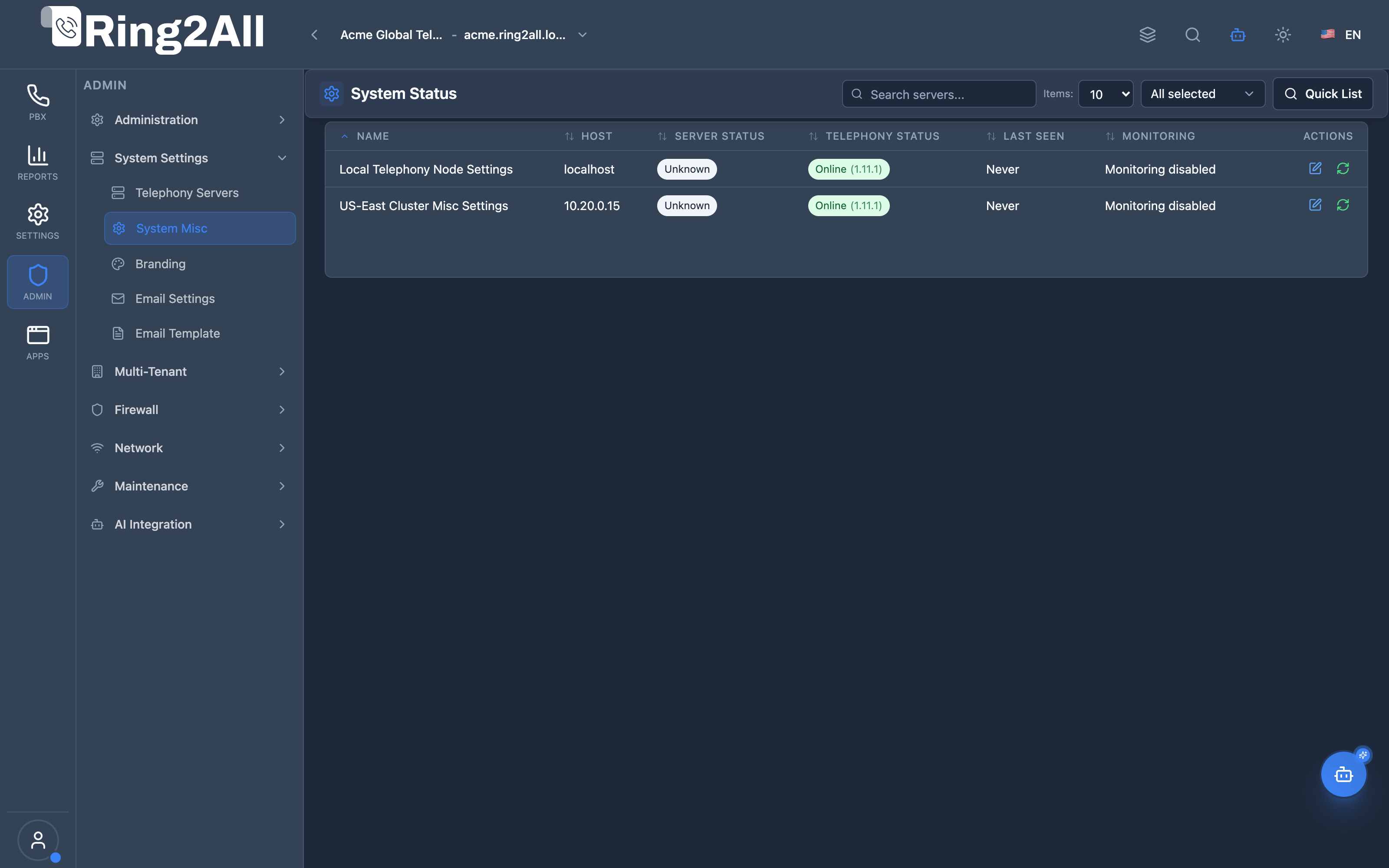
Section titled “System Misc Configurations List View”The System Misc dashboard displays server-level operational settings across all telephony nodes, showing server names, active timezones, NTP synchronization pools, logging levels, retention horizons, and alert channels.
System Misc Configuration Form
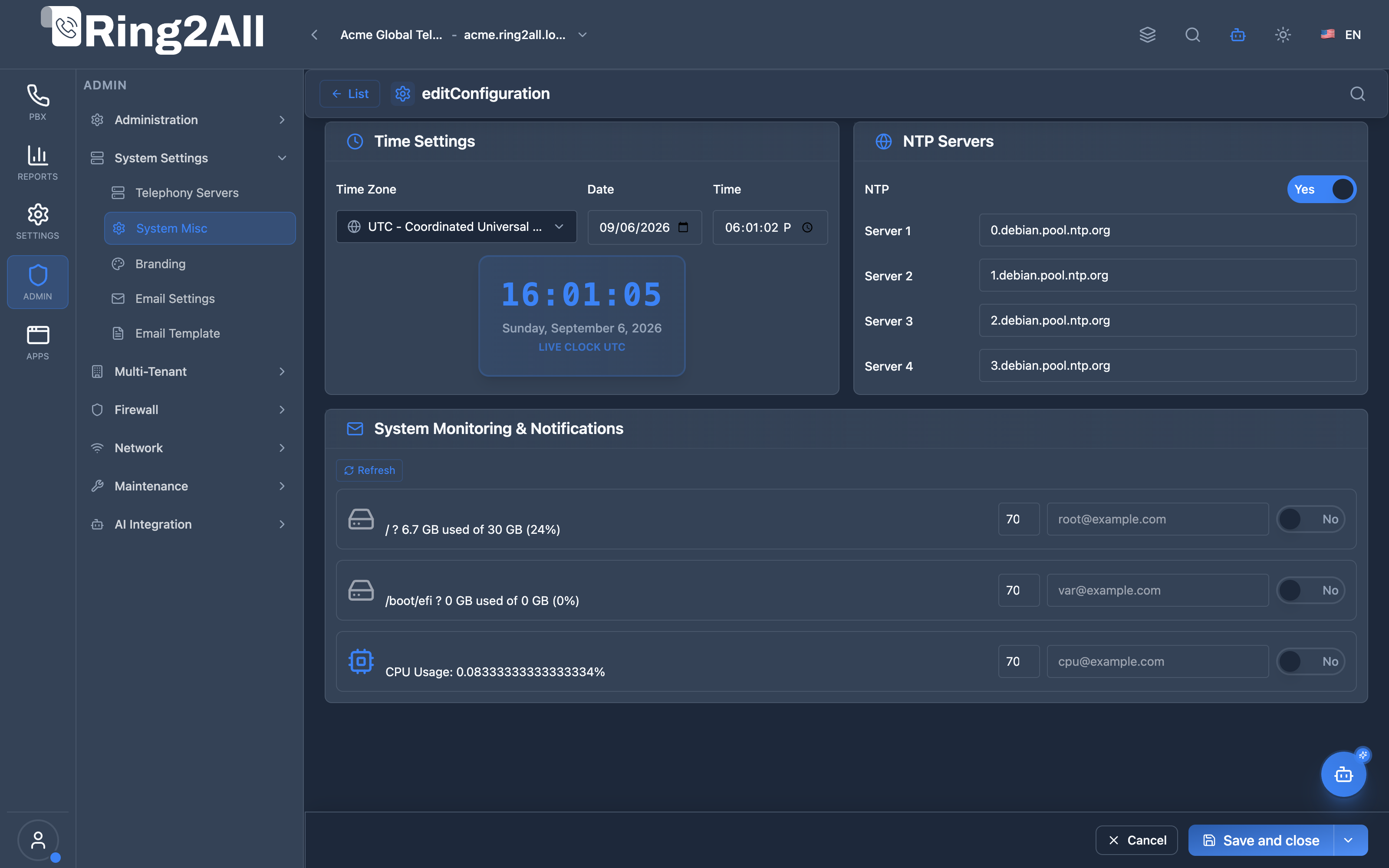
Section titled “System Misc Configuration Form”The system configuration form manages system-wide time synchronization, log verbosity thresholds, automated backup schedules, Slack/Email alert webhooks, and emergency maintenance mode toggles.
🎯 User Roles & Key Capabilities
Section titled “🎯 User Roles & Key Capabilities”The System Misc module governs platform-wide operating environment variables and physical host constraints:
| Role | Key Capabilities & Operational Scope |
|---|---|
| Super Administrator / System Architect | Sets the master server timezone, defines upstream NTP reference servers, adjusts system log levels, and triggers emergency maintenance mode. |
| Site Reliability Engineer (SRE) / DevOps | Configures disk storage utilization thresholds (root / and /var), defines CPU usage alert boundaries, and tests notification webhooks. |
| VoIP / PBX Systems Administrator | Verifies timezone consistency across CDR rating engines, billing schedulers, and time condition evaluation routines. |
| Telephony Auditor (Read-Only) | Audits NTP time synchronization status, threshold alert configurations, and system logging verbosity settings. |
1. Module Overview (Technical)
Section titled “1. Module Overview (Technical)”What Is System Misc?
Section titled “What Is System Misc?”System Misc is a system configuration module that manages server-wide settings including timezone, NTP time synchronization, and resource monitoring with email alerts for storage and CPU thresholds.
Architecture
Section titled “Architecture”┌─────────────────────────────────────────────────────────────────┐│ System Misc Architecture │├─────────────────────────────────────────────────────────────────┤│ ││ System Configuration ││ ┌──────────────────────────────────────────────────────────┐ ││ │ System Misc Settings │ ││ │ │ ││ │ Time & NTP: │ ││ │ ├─ Timezone: America/New_York │ ││ │ ├─ NTP Enabled: ✓ │ ││ │ └─ NTP Servers: pool.ntp.org, time.google.com │ ││ │ │ ││ │ Storage Monitoring: │ ││ │ ├─ Root Partition: 85% threshold │ ││ │ ├─ Var Partition: 90% threshold │ ││ │ └─ Alert Email: admin@company.com │ ││ │ │ ││ │ CPU Monitoring: │ ││ │ ├─ Threshold: 90% │ ││ │ └─ Alert Email: admin@company.com │ ││ │ │ ││ └──────────────────────────────────────────────────────────┘ ││ │ ││ ▼ Applied to server(s) ││ ┌──────────────────────────────────────────────────────────┐ ││ │ Monitoring Service │ ││ │ │ ││ │ ├─ Periodic resource checks │ ││ │ ├─ Threshold comparisons │ ││ │ └─ Email alerts when exceeded │ ││ │ │ ││ └──────────────────────────────────────────────────────────┘ ││ │ ││ ▼ Real-time display ││ ┌──────────────────────────────────────────────────────────┐ ││ │ System Status Dashboard │ ││ │ │ ││ │ NTP Status: Synced ✓ │ ││ │ Root Storage: ████████░░ 78% │ ││ │ Var Storage: ██████░░░░ 55% │ ││ │ CPU Usage: ███░░░░░░░ 32% │ ││ │ │ ││ └──────────────────────────────────────────────────────────┘ ││ │└─────────────────────────────────────────────────────────────────┘2. Module Overview (Commercial/Business)
Section titled “2. Module Overview (Commercial/Business)”Business Value
Section titled “Business Value”System Misc provides proactive system management:
| Without System Misc | With System Misc |
|---|---|
| Manual time sync | Automatic NTP |
| Unknown disk usage | Threshold alerts |
| CPU spikes unnoticed | Proactive monitoring |
| After-the-fact issues | Preventive alerts |
Use Cases
Section titled “Use Cases”-
Time Synchronization
- Consistent timestamps
- Accurate CDR records
-
Storage Alerts
- Prevent disk full errors
- Proactive capacity planning
-
CPU Monitoring
- Detect overload conditions
- Performance optimization
-
Multi-Server Management
- Centralized configuration
- Consistent settings
Feature Highlights
Section titled “Feature Highlights”| Feature | Benefit |
|---|---|
| Timezone | Consistent time display |
| NTP Servers | Up to 4 redundant sources |
| Storage Monitoring | Disk usage alerts |
| CPU Monitoring | Load alerts |
| Email Alerts | Proactive notifications |
| Usage Bars | Visual resource status |
3. Module Overview (End User/Administrator)
Section titled “3. Module Overview (End User/Administrator)”What Can You Do?
Section titled “What Can You Do?”- Set system timezone
- Configure NTP time synchronization
- Set up to 4 NTP servers
- Monitor storage usage
- Monitor CPU usage
- Configure threshold alerts
- Receive email notifications
System Settings Interface
Section titled “System Settings Interface”┌─────────────────────────────────────────────────────────────────┐│ System Settings │├─────────────────────────────────────────────────────────────────┤│ ││ Configure system timezone, NTP settings, and monitoring ││ notifications ││ ││ ──────────────────────────────────────────────────────────────││ ││ System Status ││ ││ Current Time: 2025-01-16 14:30:45 EST ││ NTP Status: ● Synced ││ ││ Storage Usage: ││ Root (/) ████████░░░░░░░░ 52% [Threshold: 85%] ││ Var (/var) █████████░░░░░░░ 58% [Threshold: 90%] ││ ││ CPU Usage: ││ CPU ███░░░░░░░░░░░░ 22% [Threshold: 90%] ││ ││ [🔄 Refresh] ││ │└─────────────────────────────────────────────────────────────────┘Time & NTP Settings
Section titled “Time & NTP Settings”┌─────────────────────────────────────────────────────────────────┐│ Time & NTP │├─────────────────────────────────────────────────────────────────┤│ ││ System Timezone: [America/New_York ▼] ││ Select the system time zone ││ ││ Enable NTP: ✓ ││ Enables network time synchronization ││ ││ NTP Servers ││ ││ NTP Server 1: [pool.ntp.org ] ││ NTP Server 2: [time.google.com ] ││ NTP Server 3: [time.cloudflare.com ] ││ NTP Server 4: [time.windows.com ] ││ │└─────────────────────────────────────────────────────────────────┘Notifications & Monitoring
Section titled “Notifications & Monitoring”┌─────────────────────────────────────────────────────────────────┐│ Notifications & Monitoring │├─────────────────────────────────────────────────────────────────┤│ ││ Storage Monitoring ││ ││ Root Partition (/) ││ Enable Storage Monitoring: ✓ ││ Storage Threshold: [85 ] % ││ Notification Email: [admin@company.com ] ││ ││ Var Partition (/var) ││ Enable Storage Monitoring: ✓ ││ Storage Threshold: [90 ] % ││ Notification Email: [admin@company.com ] ││ ││ ──────────────────────────────────────────────────────────────││ ││ CPU Monitoring ││ ││ Enable CPU Monitoring: ✓ ││ CPU Threshold: [90 ] % ││ Notification Email: [admin@company.com ] ││ ││ [Save] [Cancel] ││ │└─────────────────────────────────────────────────────────────────┘Quick Tips
Section titled “Quick Tips”[!TIP] Multiple NTP: Use 2-4 servers for redundancy.
[!TIP] Threshold Balance: Not too low (alert fatigue), not too high (too late).
[!NOTE] Email Required: Must provide email when monitoring is enabled.
4. Configuration Sections
Section titled “4. Configuration Sections”Time & NTP
Section titled “Time & NTP”| Field | Description |
|---|---|
| System Timezone | Server timezone |
| Enable NTP | Time sync toggle |
| NTP Server 1-4 | Time sources |
Storage Monitoring
Section titled “Storage Monitoring”| Field | Description |
|---|---|
| Enable Monitoring | Toggle monitoring |
| Threshold | Alert percentage |
| Notification Email | Alert recipient |
CPU Monitoring
Section titled “CPU Monitoring”| Field | Description |
|---|---|
| Enable Monitoring | Toggle monitoring |
| Threshold | Alert percentage |
| Notification Email | Alert recipient |
5. Settings Reference
Section titled “5. Settings Reference”Recommended NTP Servers
Section titled “Recommended NTP Servers”| Server | Provider |
|---|---|
| pool.ntp.org | NTP Pool Project |
| time.google.com | |
| time.cloudflare.com | Cloudflare |
| time.windows.com | Microsoft |
| time.apple.com | Apple |
Threshold Guidelines
Section titled “Threshold Guidelines”| Resource | Recommended |
|---|---|
| Root Storage | 80-85% |
| Var Storage | 85-90% |
| CPU | 85-95% |
NTP Status Values
Section titled “NTP Status Values”| Status | Meaning |
|---|---|
| Synced | Time synchronized |
| Not Synced | Sync failed |
6. Common Scenarios & Examples
Section titled “6. Common Scenarios & Examples”Scenario 1: Set Timezone
Section titled “Scenario 1: Set Timezone”- Open System Settings
- Select timezone from dropdown
- Save
- All timestamps use new timezone
Scenario 2: Configure NTP
Section titled “Scenario 2: Configure NTP”- Enable NTP toggle
- Enter primary NTP server
- Add 2-3 backup servers
- Save
- System syncs time automatically
Scenario 3: Storage Alerts
Section titled “Scenario 3: Storage Alerts”- Enable Storage Monitoring
- Set threshold = 85%
- Enter email address
- Save
- Receive alert when disk exceeds 85%
Scenario 4: CPU Alerts
Section titled “Scenario 4: CPU Alerts”- Enable CPU Monitoring
- Set threshold = 90%
- Enter email address
- Save
- Receive alert during high CPU
Model Context Protocol (MCP) AI Integration
Section titled “Model Context Protocol (MCP) AI Integration”The Ring2All PBX platform provides Model Context Protocol (MCP) tools for inspecting server-wide miscellaneous configuration settings and monitoring thresholds.
MCP Tools Reference
Section titled “MCP Tools Reference”| Tool Name | Operation | Description | Risk Level |
|---|---|---|---|
get_system_misc_settings |
Read | Retrieves server timezone, NTP synchronization servers, log levels, and maintenance mode status. | Low |
JSON Schema Definitions
Section titled “JSON Schema Definitions”get_system_misc_settings
Section titled “get_system_misc_settings”{ "name": "get_system_misc_settings", "description": "Retrieves global system configuration including server timezone, NTP synchronization servers, log levels, and maintenance mode status.", "parameters": { "type": "object", "properties": {} }}Natural Language Prompt Examples
Section titled “Natural Language Prompt Examples”English
Section titled “English”- “What is the active timezone configured for the PBX operating system?”
- “Check the list of NTP servers used for clock synchronization.”
- “Is the PBX system currently in maintenance mode?”
Spanish
Section titled “Spanish”- “¿Cuál es la zona horaria activa configurada en el sistema?”
- “Consulta los servidores NTP configurados para la sincronización horaria.”
- “Verifica si el sistema PBX tiene activo el modo de mantenimiento.”
Enterprise Safeguards & Guardrails
Section titled “Enterprise Safeguards & Guardrails”- Clock Drift Prevention: Read-only inspection prevents unintentional disruption to CDR billing timestamps and Time Condition schedules.
- Graceful Fallback: If custom database parameters are not present, the tool safely falls back to standard operating system environment defaults.
7. Limitations & Important Notes
Section titled “7. Limitations & Important Notes”Technical Notes
Section titled “Technical Notes”[!NOTE] Email Required: Monitoring requires valid email.
[!NOTE] NTP Redundancy: Use multiple servers.
[!WARNING] Timezone Change: Affects all timestamps.
Best Practices
Section titled “Best Practices”- Multiple NTP: Use 2-4 servers
- Reasonable Thresholds: Avoid alert fatigue
- Valid Email: Ensure delivery
- Test Alerts: Verify notifications work
- Regular Review: Adjust thresholds as needed
Threshold Recommendations
Section titled “Threshold Recommendations”| Threshold | Too Low | Good | Too High |
|---|---|---|---|
| Storage | <70% | 80-90% | >95% |
| CPU | <70% | 85-95% | 99% |
8. Troubleshooting Tips
Section titled “8. Troubleshooting Tips”Common Issues
Section titled “Common Issues”| Symptom | Possible Cause | Solution |
|---|---|---|
| Time not syncing | NTP blocked | Check firewall |
| No alerts received | Wrong email | Verify email address |
| Constant alerts | Threshold too low | Increase threshold |
| NTP not synced | Bad server | Try different NTP |
Check NTP Status
Section titled “Check NTP Status”# Check NTP synctimedatectl status
# Query NTP serverntpq -p
# Force syncntpdate -s pool.ntp.orgCheck Storage
Section titled “Check Storage”# Check disk usagedf -h
# Check specific mountdf -h /df -h /varCheck CPU
Section titled “Check CPU”# Real-time CPUtop
# Average loaduptime
# CPU infocat /proc/cpuinfo | grep "model name"9. Glossary
Section titled “9. Glossary”| Term | Definition |
|---|---|
| NTP | Network Time Protocol |
| Timezone | Regional time offset |
| Threshold | Alert trigger level |
| Sync | Time synchronization |
| Partition | Disk section |
Documentation last updated: January 2026