

Email Settings Module Documentation
Table of Contents
Section titled “Table of Contents”- Navigation & Access
- Screenshots & Visual Interface
- 🎯 User Roles & Key Capabilities
- Module Overview (Technical)
- Module Overview (Commercial/Business)
- Module Overview (End User/Administrator)
- Configuration Sections
- Settings Reference
- Common Scenarios & Examples
- Model Context Protocol (MCP) AI Integration
- Limitations & Important Notes
- Troubleshooting Tips
- Glossary
Navigation & Access
Section titled “Navigation & Access”To access the Email Settings module:
- Log in to the Ring2All Web Portal (
https://<domain-or-ip>/login). - In the left navigation sidebar, expand Admin.
- Under System Settings, click Email Settings (
/admin/system-settings/email). - To configure a new outgoing SMTP server profile, click the + Add Email Config button.
- To view, edit, duplicate, or send a test email through an existing profile, click on the configuration row or action icons (
/admin/system-settings/email/:id).
Screenshots & Visual Interface
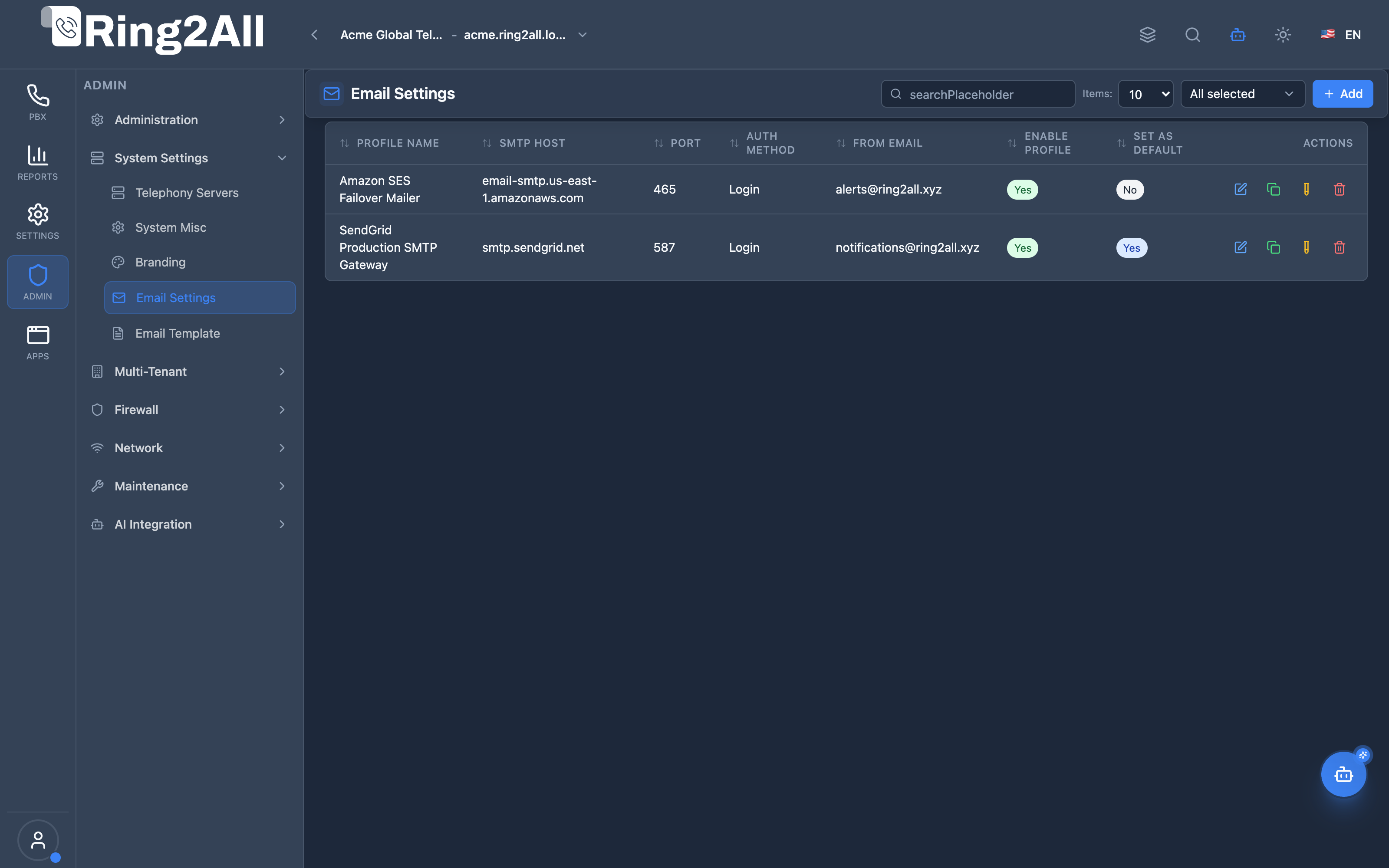
Section titled “Screenshots & Visual Interface”Email Settings List View
Section titled “Email Settings List View”The Email Settings interface lists all registered SMTP gateway profiles (Amazon SES, SendGrid, Mailgun, Postfix) with their hostname, port, security protocol (SSL/TLS), default sender email, active status, and interactive test delivery button.
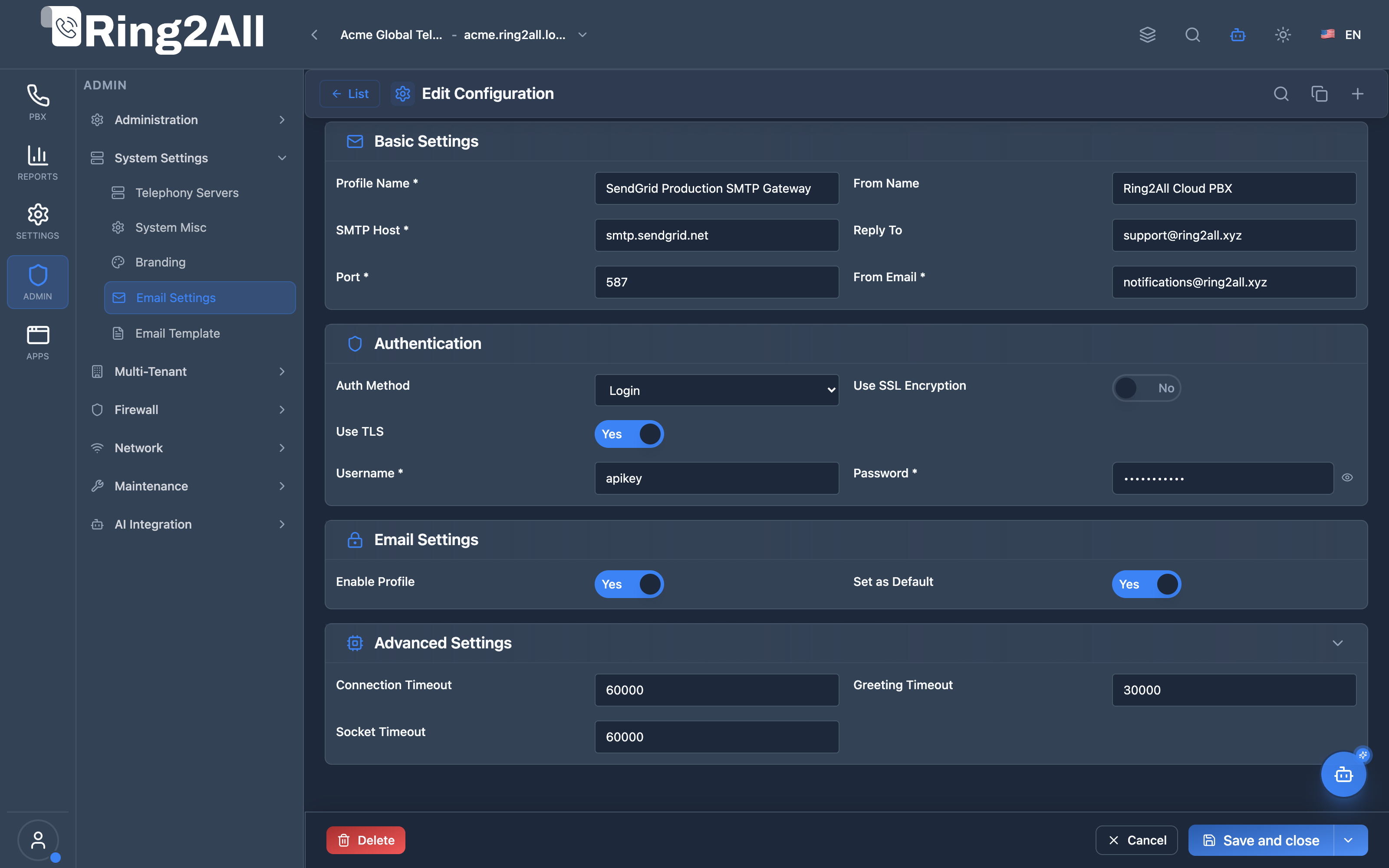
Email Configuration Form
Section titled “Email Configuration Form”The email server editor provides fine-grained settings to specify SMTP server credentials, authentication methods (Login, Plain, OAuth2), socket timeout values, default fallback sender address, and tenant isolation scopes.
🎯 User Roles & Key Capabilities
Section titled “🎯 User Roles & Key Capabilities”The Email Settings module configures critical notification delivery pipelines for voicemail, faxes, and security alerts:
| Role | Key Capabilities & Operational Scope |
|---|---|
| Super Administrator | Configures global outbound SMTP gateways (e.g. Amazon SES, SendGrid, Postfix relay), manages TLS certificates, and sets default sender addresses. |
| Tenant Administrator | Establishes company-specific SMTP credentials so notifications (voicemail-to-email, missed calls) originate from the client’s own corporate domain. |
| Security & Compliance Officer | Audits SMTP encryption protocols (enforcing TLS/SSL), validates authentication methods, and inspects delivery logs for unauthorized relays. |
| Telephony Auditor (Read-Only) | Reviews active SMTP hostnames, security encryption ports, and default sender addresses with credentials securely redacted. |
1. Module Overview (Technical)
Section titled “1. Module Overview (Technical)”What Are Email Settings?
Section titled “What Are Email Settings?”Email Settings is an SMTP configuration module that manages outgoing email server profiles. It supports multiple SMTP configurations with authentication, encryption (SSL/TLS), and includes test functionality and email delivery logs.
Architecture
Section titled “Architecture”┌─────────────────────────────────────────────────────────────────┐│ Email Settings Architecture │├─────────────────────────────────────────────────────────────────┤│ ││ Email Configuration Profiles ││ ┌──────────────────────────────────────────────────────────┐ ││ │ Profile: Company SMTP │ ││ │ │ ││ │ Basic Settings: │ ││ │ ├─ Host: smtp.company.com │ ││ │ ├─ Port: 587 │ ││ │ └─ TLS: Enabled │ ││ │ │ ││ │ Authentication: │ ││ │ ├─ Method: Login │ ││ │ ├─ Username: noreply@company.com │ ││ │ └─ Password: ******** │ ││ │ │ ││ │ Email Settings: │ ││ │ ├─ From Email: noreply@company.com │ ││ │ ├─ From Name: Company PBX │ ││ │ └─ Reply To: support@company.com │ ││ │ │ ││ │ Status: ✓ Active, ⭐ Default │ ││ │ │ ││ └──────────────────────────────────────────────────────────┘ ││ │ ││ ▼ Used by system ││ ┌──────────────────────────────────────────────────────────┐ ││ │ Email Sender Service │ ││ │ │ ││ │ Sends emails for: │ ││ │ ├─ Voicemail notifications │ ││ │ ├─ Fax-to-email │ ││ │ ├─ System alerts │ ││ │ ├─ Password resets │ ││ │ └─ User notifications │ ││ │ │ ││ └──────────────────────────────────────────────────────────┘ ││ │ ││ ▼ Logged ││ ┌──────────────────────────────────────────────────────────┐ ││ │ Email Logs │ ││ │ │ ││ │ ├─ Pending │ ││ │ ├─ Sent │ ││ │ ├─ Failed │ ││ │ └─ Bounced │ ││ │ │ ││ └──────────────────────────────────────────────────────────┘ ││ │└─────────────────────────────────────────────────────────────────┘2. Module Overview (Commercial/Business)
Section titled “2. Module Overview (Commercial/Business)”Business Value
Section titled “Business Value”Email Settings provides reliable email delivery:
| Without Email Settings | With Email Settings |
|---|---|
| No notifications | Email alerts |
| No voicemail email | VM to email |
| No fax delivery | Fax to email |
| Unknown status | Delivery logs |
Use Cases
Section titled “Use Cases”-
Voicemail Notifications
- Email new voicemails
- Audio attachments
-
System Alerts
- Storage warnings
- CPU alerts
- Security notifications
-
Fax to Email
- Receive faxes as PDF
- Email delivery
-
User Notifications
- Password resets
- Account alerts
Feature Highlights
Section titled “Feature Highlights”| Feature | Benefit |
|---|---|
| Multiple Profiles | Different SMTP servers |
| SSL/TLS | Secure transmission |
| Authentication | Login, Plain, OAuth2 |
| Test Function | Verify before use |
| Email Logs | Delivery tracking |
| Default Profile | Fallback configuration |
3. Module Overview (End User/Administrator)
Section titled “3. Module Overview (End User/Administrator)”What Can You Do?
Section titled “What Can You Do?”- Create SMTP server configurations
- Set encryption (SSL/TLS)
- Configure authentication
- Set sender information
- Test email delivery
- View email logs
- Set default profile
Email Settings Interface
Section titled “Email Settings Interface”┌─────────────────────────────────────────────────────────────────┐│ Email Settings │├─────────────────────────────────────────────────────────────────┤│ ││ Configure email server settings for system notifications ││ ││ [+ Add Configuration] ││ ││ ┌───────────────────────────────────────────────────────────┐ ││ │ Profile Name │ Host │ Status │ Default │ ││ ├─────────────────┼───────────────────┼──────────┼─────────┤ ││ │ Gmail SMTP │ smtp.gmail.com │ ● Active │ ⭐ │ ││ │ SendGrid │ smtp.sendgrid.net │ ● Active │ │ ││ │ Office365 │ smtp.office365.com│ ○ Inactive│ │ ││ └───────────────────────────────────────────────────────────┘ ││ ││ [📋 View Logs] ││ │└─────────────────────────────────────────────────────────────────┘Add/Edit Configuration
Section titled “Add/Edit Configuration”┌─────────────────────────────────────────────────────────────────┐│ Edit Configuration: Gmail SMTP │├─────────────────────────────────────────────────────────────────┤│ ││ ▼ Basic Settings ││ ││ Profile Name: [Gmail SMTP ] ││ Friendly name for this email configuration ││ ││ SMTP Host: [smtp.gmail.com ] ││ SMTP server hostname or IP address ││ ││ Port: [587 ] ││ 587 for TLS, 465 for SSL, 25 for plain ││ ││ Use SSL Encryption: ☐ ││ Use SSL encryption (port 465) ││ ││ Use TLS: ✓ ││ Use STARTTLS encryption (port 587) ││ ││ ──────────────────────────────────────────────────────────────││ ││ ▼ Authentication ││ ││ Auth Method: [Login ▼] ││ None | Login | Plain | OAuth2 ││ ││ Username: [noreply@company.com ] ││ Account username or email address ││ ││ Password: [•••••••••••••••• ] ││ Password or app-specific password ││ ││ ──────────────────────────────────────────────────────────────││ ││ ▼ Email Settings ││ ││ From Email: [noreply@company.com ] ││ The email address that appears as sender ││ ││ From Name: [Company PBX ] ││ The name displayed as the sender ││ ││ Reply To: [support@company.com ] ││ Where replies should be directed ││ ││ ──────────────────────────────────────────────────────────────││ ││ ▼ Advanced Settings ││ ││ Connection Timeout: [60000 ] ms ││ Greeting Timeout: [30000 ] ms ││ Socket Timeout: [60000 ] ms ││ ││ ──────────────────────────────────────────────────────────────││ ││ ▼ Status Settings ││ ││ Enable Profile: ✓ ││ Enable this configuration for sending emails ││ ││ Set as Default: ✓ ││ Use this as the default configuration ││ ││ [Test Configuration] [Save] [Cancel] ││ │└─────────────────────────────────────────────────────────────────┘Test Configuration
Section titled “Test Configuration”┌─────────────────────────────────────────────────────────────────┐│ Test Email Configuration │├─────────────────────────────────────────────────────────────────┤│ ││ Enter an email address to send a test message ││ ││ Test Email Address: [admin@company.com ] ││ ││ [Send Test] ││ ││ ✓ Test Successful ││ Test email sent successfully ││ │└─────────────────────────────────────────────────────────────────┘Email Logs
Section titled “Email Logs”┌─────────────────────────────────────────────────────────────────┐│ Email Logs │├─────────────────────────────────────────────────────────────────┤│ ││ View email sending history and status ││ ││ Filters: ││ Status: [All statuses ▼] From: [ ] To: [ ] ││ ││ [🔍 Search logs...] ││ ││ ┌───────────────────────────────────────────────────────────┐ ││ │ Date │ To │ Subject │ Status │ ││ ├────────────┼───────────────────┼──────────────┼──────────┤ ││ │ 2025-01-16 │ user@company.com │ New Voicemail│ ● Sent │ ││ │ 2025-01-16 │ admin@company.com │ System Alert │ ● Sent │ ││ │ 2025-01-15 │ bad@invalid.com │ Notification │ ✗ Failed │ ││ │ 2025-01-15 │ user@company.com │ Fax Received │ ● Sent │ ││ └───────────────────────────────────────────────────────────┘ ││ │└─────────────────────────────────────────────────────────────────┘Quick Tips
Section titled “Quick Tips”[!TIP] Test Before Use: Always test configuration before going live.
[!TIP] App Passwords: Use app-specific passwords for Gmail/Office365.
[!NOTE] Password Storage: Passwords are stored encrypted.
4. Configuration Sections
Section titled “4. Configuration Sections”Basic Settings
Section titled “Basic Settings”| Field | Description |
|---|---|
| Profile Name | Identifier |
| SMTP Host | Server address |
| Port | SMTP port |
| Use SSL | SSL encryption (465) |
| Use TLS | STARTTLS (587) |
Authentication
Section titled “Authentication”| Field | Description |
|---|---|
| Auth Method | None, Login, Plain, OAuth2 |
| Username | Login username |
| Password | Login password |
Email Settings
Section titled “Email Settings”| Field | Description |
|---|---|
| From Email | Sender address |
| From Name | Sender display name |
| Reply To | Reply destination |
Advanced Settings
Section titled “Advanced Settings”| Field | Description |
|---|---|
| Connection Timeout | Connect wait (ms) |
| Greeting Timeout | Server greeting wait (ms) |
| Socket Timeout | Operation wait (ms) |
Status Settings
Section titled “Status Settings”| Field | Description |
|---|---|
| Enable Profile | Active/Inactive |
| Set as Default | System default |
5. Settings Reference
Section titled “5. Settings Reference”Common SMTP Servers
Section titled “Common SMTP Servers”| Provider | Host | Port | Encryption |
|---|---|---|---|
| Gmail | smtp.gmail.com | 587 | TLS |
| Office 365 | smtp.office365.com | 587 | TLS |
| SendGrid | smtp.sendgrid.net | 587 | TLS |
| Amazon SES | email-smtp.{region}.amazonaws.com | 587 | TLS |
| Mailgun | smtp.mailgun.org | 587 | TLS |
Port Guide
Section titled “Port Guide”| Port | Encryption | Use Case |
|---|---|---|
| 25 | None | Legacy (not recommended) |
| 465 | SSL | Implicit SSL |
| 587 | TLS | STARTTLS (recommended) |
| 2525 | TLS | Alternative TLS |
Email Log Statuses
Section titled “Email Log Statuses”| Status | Meaning |
|---|---|
| Pending | Queued for delivery |
| Sent | Successfully delivered |
| Failed | Delivery failed |
| Bounced | Recipient rejected |
6. Common Scenarios & Examples
Section titled “6. Common Scenarios & Examples”Scenario 1: Gmail SMTP
Section titled “Scenario 1: Gmail SMTP”- Add Configuration
- Name = “Gmail SMTP”
- Host = smtp.gmail.com
- Port = 587
- Enable TLS
- Auth = Login
- Username = your@gmail.com
- Password = App Password (not regular password)
- Test and Save
Scenario 2: Office 365
Section titled “Scenario 2: Office 365”- Add Configuration
- Name = “Office365”
- Host = smtp.office365.com
- Port = 587
- Enable TLS
- Auth = Login
- Use Microsoft account credentials
- Test and Save
Scenario 3: SendGrid
Section titled “Scenario 3: SendGrid”- Add Configuration
- Name = “SendGrid”
- Host = smtp.sendgrid.net
- Port = 587
- Enable TLS
- Auth = Login
- Username = apikey
- Password = SendGrid API Key
- Test and Save
Scenario 4: Multiple Profiles
Section titled “Scenario 4: Multiple Profiles”- Create primary SMTP (Gmail)
- Set as Default
- Create backup SMTP (SendGrid)
- Keep as secondary
- Both profiles available
Model Context Protocol (MCP) AI Integration
Section titled “Model Context Protocol (MCP) AI Integration”The Ring2All PBX platform provides Model Context Protocol (MCP) tools for inspecting outgoing SMTP server configurations and deliverability settings.
MCP Tools Reference
Section titled “MCP Tools Reference”| Tool Name | Operation | Description | Risk Level |
|---|---|---|---|
get_email_settings |
Read | Retrieves outgoing SMTP configuration (host, port, TLS security, sender address) with passwords redacted. | Low |
JSON Schema Definitions
Section titled “JSON Schema Definitions”get_email_settings
Section titled “get_email_settings”{ "name": "get_email_settings", "description": "Retrieves outgoing SMTP email server configuration with passwords securely redacted.", "parameters": { "type": "object", "properties": {} }}Natural Language Prompt Examples
Section titled “Natural Language Prompt Examples”English
Section titled “English”- “What SMTP host and port are configured for outgoing PBX notifications?”
- “Check if TLS encryption is enabled on the outgoing mail server.”
- “What sender email address is used when dispatching voicemail-to-email notifications?”
Spanish
Section titled “Spanish”- “¿Cuál es el servidor SMTP y puerto configurado para enviar correos?”
- “Verifica si el servidor de correo saliente tiene habilitado cifrado TLS.”
- “Consulta la dirección de remitente (‘From’) configurada para las alertas del sistema.”
Enterprise Safeguards & Guardrails
Section titled “Enterprise Safeguards & Guardrails”- Password Redaction: SMTP passwords and API secrets are strictly redacted and replaced with security masks (
[PROTECTED]). - Read-Only Inspection: AI assistants can verify server readiness without exposing mail dispatch endpoints to unauthorized mass email spam.
7. Limitations & Important Notes
Section titled “7. Limitations & Important Notes”Technical Notes
Section titled “Technical Notes”[!NOTE] App Passwords: Gmail/Office365 require app-specific passwords.
[!NOTE] Rate Limits: SMTP providers have sending limits.
[!WARNING] SPF/DKIM: Configure DNS for best deliverability.
Best Practices
Section titled “Best Practices”- App Passwords: Use for Gmail/Microsoft
- TLS: Always use encryption
- Test First: Verify before production
- Monitor Logs: Check for failures
- Backup Profile: Have secondary SMTP
Gmail Requirements
Section titled “Gmail Requirements”| Requirement | Action |
|---|---|
| 2FA Enabled | Enable two-factor auth |
| App Password | Generate app-specific password |
| Less Secure Apps | Not needed with app passwords |
8. Troubleshooting Tips
Section titled “8. Troubleshooting Tips”Common Issues
Section titled “Common Issues”| Symptom | Possible Cause | Solution |
|---|---|---|
| Connection timeout | Wrong host/port | Verify settings |
| Auth failed | Wrong credentials | Check username/password |
| TLS error | Wrong encryption | Match port to encryption |
| Test fails | Firewall blocking | Check outbound port |
Test SMTP Connection
Section titled “Test SMTP Connection”# Test port connectivitytelnet smtp.gmail.com 587
# Test with OpenSSLopenssl s_client -starttls smtp -connect smtp.gmail.com:587Check Logs
Section titled “Check Logs”SELECT recipient_email, subject, status, error_message, sent_atFROM public.email_logsORDER BY sent_at DESCLIMIT 20;9. Glossary
Section titled “9. Glossary”| Term | Definition |
|---|---|
| SMTP | Simple Mail Transfer Protocol |
| TLS | Transport Layer Security |
| SSL | Secure Sockets Layer |
| STARTTLS | TLS upgrade command |
| App Password | Single-use app credential |
| SPF | Sender Policy Framework |
Documentation last updated: January 2026